Hide a SharePoint folder with specific permissions
Use ISO 19650 to hide a folder from certain audiences (for example, designers) by giving the folder its own permission list. You cannot fully "lock" a folder; instead, explicitly add every group or user who should see it.
How folder permissions behave
- If the folder already has custom permissions, they appear in Manage permissions.
- If no permissions are listed, the folder still inherits from the parent. As soon as you add one permission entry, inheritance is broken, inherited entries are cleared, and only the permissions you add remain. Make sure you add everyone who needs access.
Set folder-specific permissions
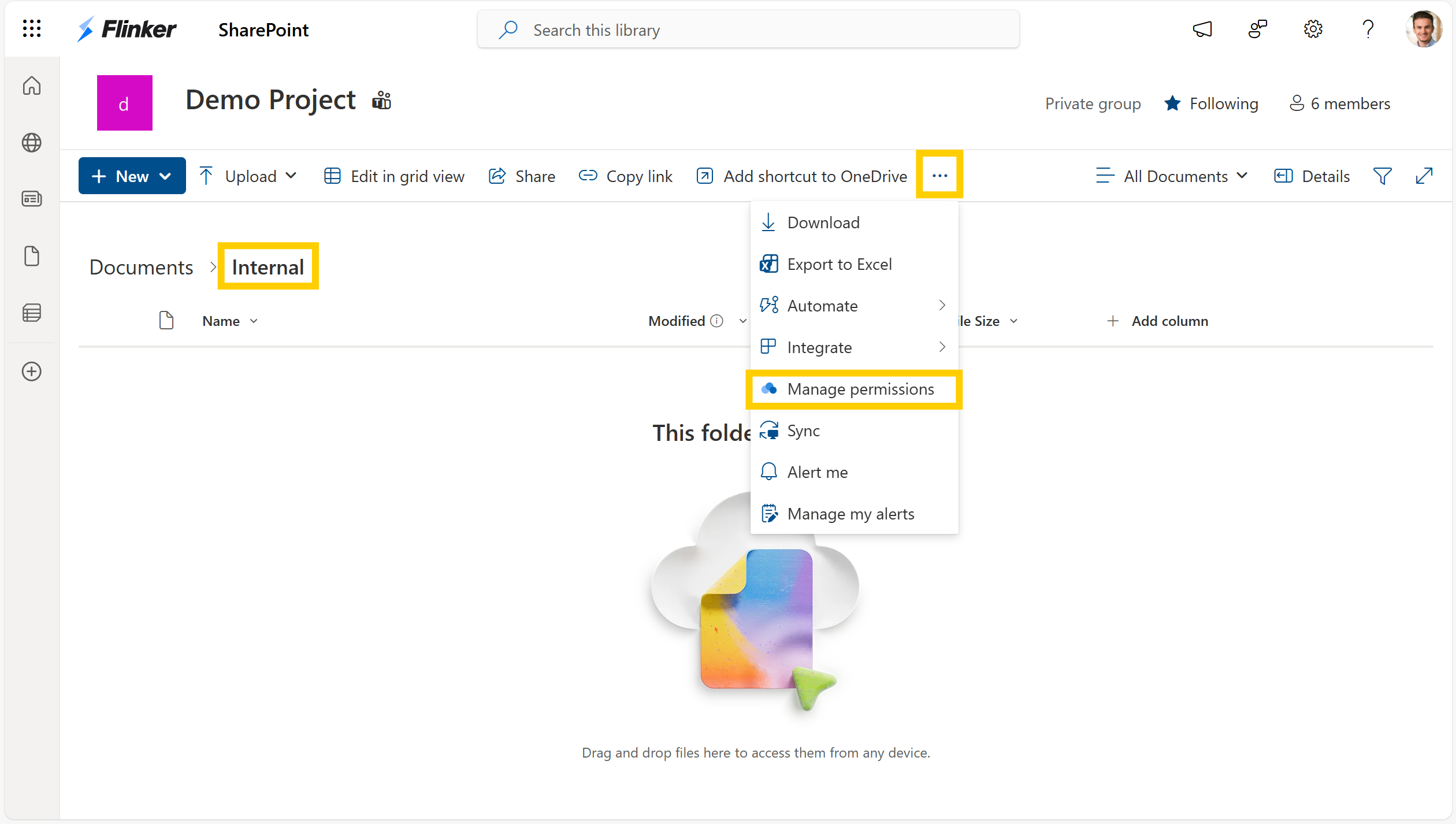
- In SharePoint, open the library and navigate into the folder you want to restrict. Select the folder and choose Manage permissions from the menu to open ISO 19650.
- In ISO 19650, select Add, choose the groups or users who should keep access (omit the ones you want to hide it from), and pick the appropriate role (such as Read or Edit).
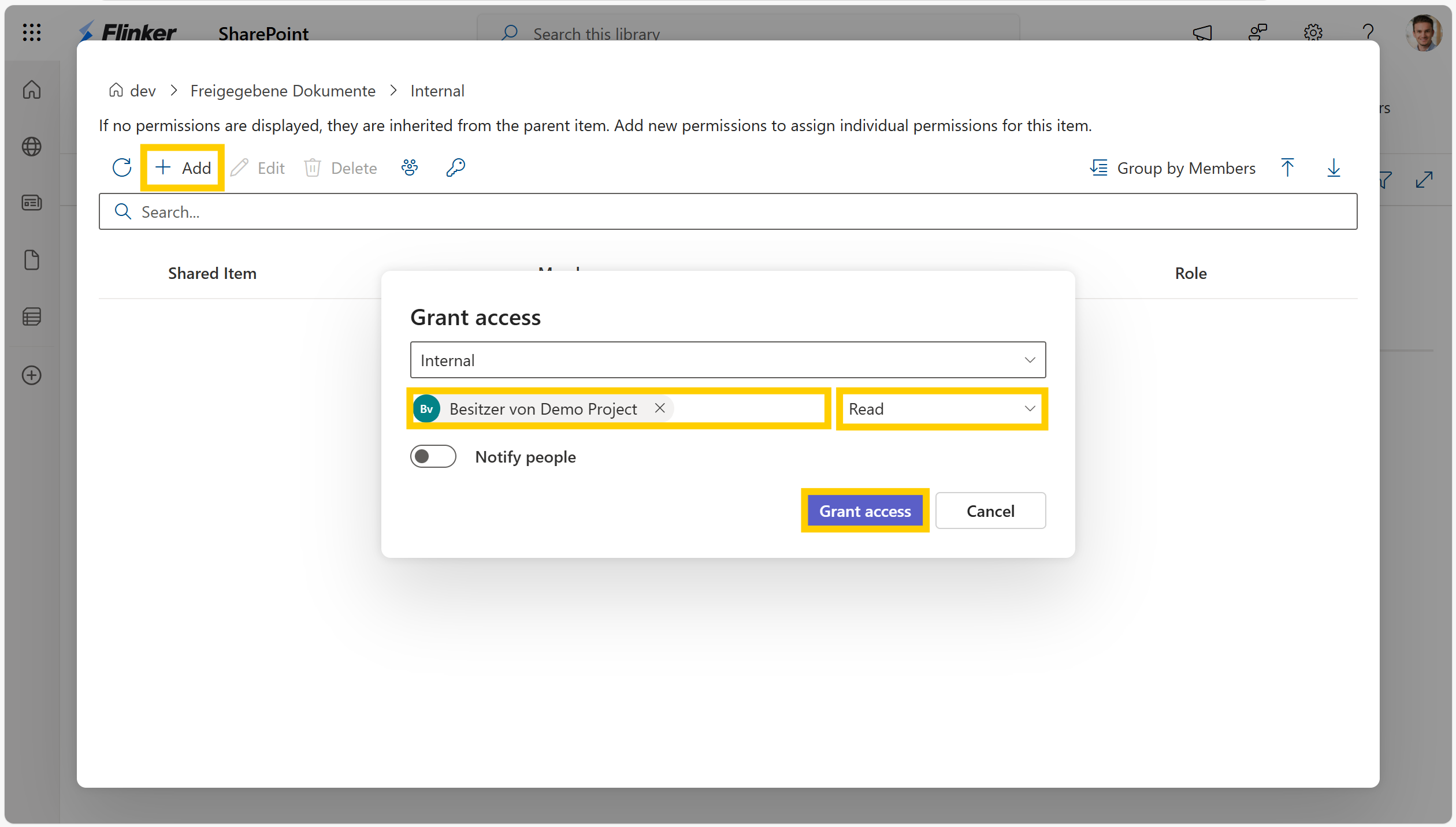
- Repeat Add until all required people and groups are listed. The folder now has unique permissions, and it is hidden from everyone not included.
Tip
- Prefer SharePoint or Microsoft 365 groups instead of individual users to simplify maintenance.
- Review the list after saving to confirm only the intended audiences remain.