IFC 4.3 infrastructure and alignments
The IFC 4.3 infrastructure and alignments feature in Flinker brings tools for visualizing and interacting with IFC 4.3 infrastructure models.
It focuses on alignments, station navigation, and clipping planes, helping users explore and analyze roads, bridges, and rail models with engineering precision.
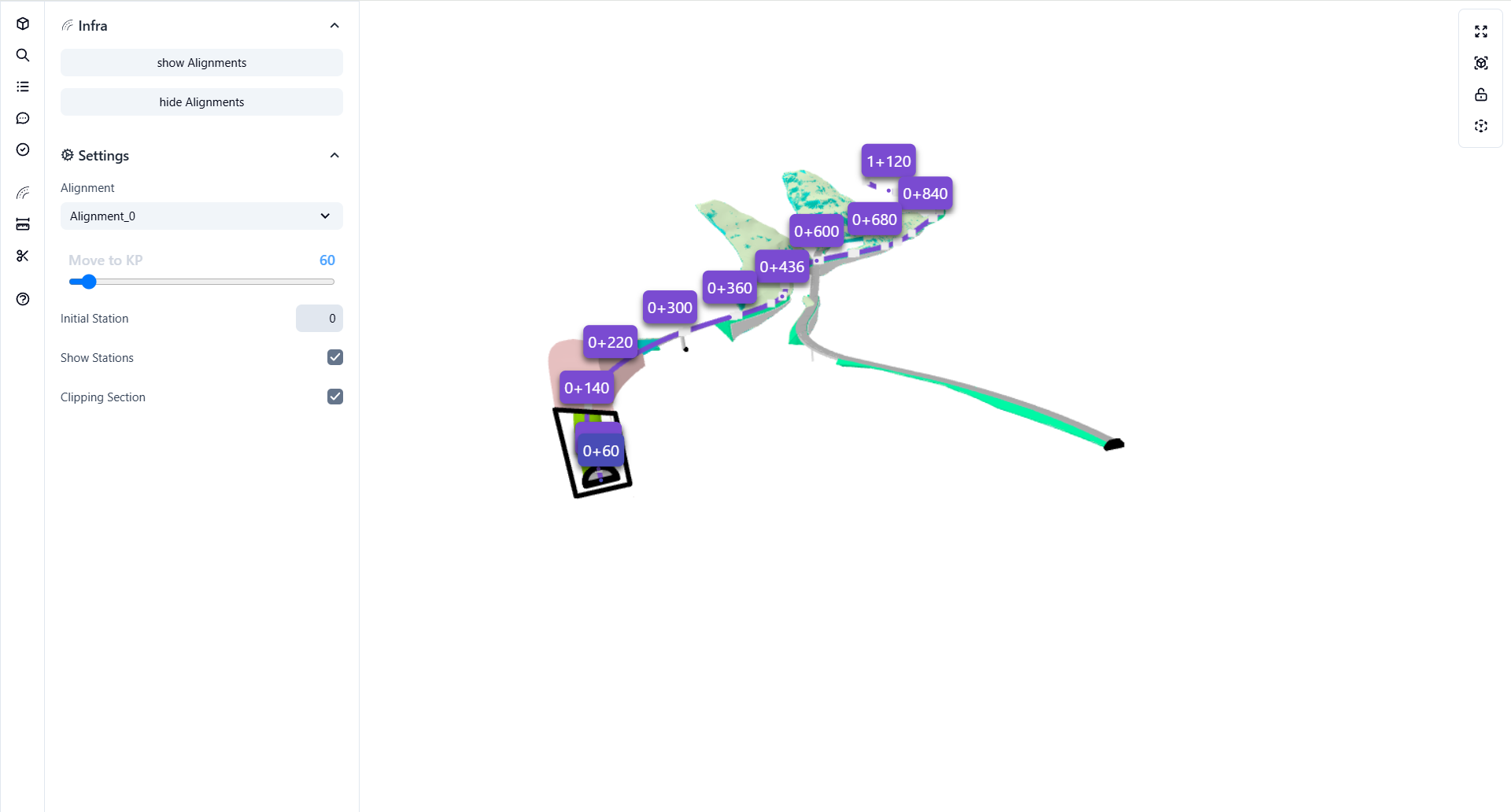
With Infra, you can load IFC models containing IfcAlignment entities, navigate along the route, view cross-sections, and inspect data interactively - all inside your browser. The viewer can show station markers, alignment paths, and a clipping section for the selected chainage.
What is IFC 4.3 infrastructure support?
This is a specialized viewer module that enhances the visualization and analysis of IFC 4.3 infrastructure entities, primarily focusing on:
- IfcAlignment and IfcAlignmentSegment elements
- Station navigation (chainage or KP)
- Cross-section clipping
- Station labels and coordinate mapping
It provides engineers with smooth camera navigation along the alignment path and real-time clipping tools to inspect geometry at any chainage point.
Why use IFC 4.3 infrastructure support?
Precision
Move the camera along exact chainage positions (e.g., 0+060, 0+140) and visualize model sections at any station.
Clarity
Display or hide alignment paths and station markers for simplified infrastructure inspection.
Control
Enable dynamic clipping to generate cross-sectional views for detailed analysis or coordination.
Benefits of IFC 4.3 infrastructure support
IFC 4.3 alignment support:
Load and visualize IfcAlignment entities directly within the web viewer.Interactive station navigation:
Move smoothly between stations using a chainage (KP) slider.Dynamic clipping and cross sections:
Create cross-sectional clipping planes perpendicular to the alignment for structural inspection.Multi-alignment handling:
Work with multiple road or rail alignments simultaneously in one model.Visual feedback:
Real-time station highlighting and tagging directly in the 3D view.
How to use infrastructure tools in Flinker
Follow these steps to work with the Infra feature inside Flinker:
Load your IFC 4.3 model
Open your IFC 4.3 file containing IfcAlignment entities in the viewer.Open the Infra panel
In the left sidebar, locate and expand the Infra section to access alignment controls.Show or hide alignments
Use the Show Alignments / Hide Alignments buttons to toggle visibility of alignment curves.Select an alignment
Choose your desired alignment (e.g.,Alignment_0) from the dropdown menu.Navigate to KP (station)
Use the Move to KP slider to move along the alignment path.
Each KP (kilometer point) corresponds to a real-world station (e.g., 0+060, 0+220, 1+120).
As you move, you’ll see real-time updates in the 3D view with station markers.Toggle station labels and clipping section
- Enable Show Stations to display KP markers.
- Enable Clipping Section to generate a cross-section view at the current KP.
Automatic detection and station control
The Infra system automatically detects all IfcAlignment elements within the model and computes their station points for navigation.
Users can dynamically move through these points, inspect geometry transitions, and clip the model at any station for quick sectioning or visualization.
Practical examples
Road design review:
Navigate along a highway alignment and examine bridge and tunnel entries at each station.Bridge cross-section analysis:
Use clipping to inspect the superstructure or substructure geometry at specific chainages.Rail alignment inspection:
Switch between multiple rail alignments and visualize elevation transitions interactively.