Load complete IFC data with the Power BI data extension
The standard IFC Viewer sample query is optimized to load geometry and core element fields for the visual. Install the IFC connector (.mez) when you also need IFC metadata for reporting, QA checks, quantity takeoff, materials, classifications, cost data, or schedule joins.
Advantages
Reporting advantages
- Load many IFC models from one folder instead of adding each file path manually.
- Include nested project folders by setting
SubfolderstoTRUE. - Build reports from IFC properties, quantities, materials, classifications, and building metadata.
- Use the same loaded data for filters, slicers, color rules, QA checks, quantity takeoff, cost reports, and schedule joins.
- Keep reports lighter when needed by setting
FullpropertiestoFALSE.
Advantages of the .mez connector
- Give report authors a Power BI connector in Get Data instead of asking them to maintain long Power Query code.
- Help teams use the same IFC loading logic across reports and workstations.
- Deploy and update one
.mezconnector package for Power BI Desktop users. - Keep license access in the connector sign-in flow instead of adding connector-specific setup steps to every report.
What you get with the connector
The connector adds two capabilities to the AppSource sample report: folder loading and complete IFC data for reporting in Power BI.
Folder and subfolder loading
- Use a folder path in
Filepathto load all.ifcfiles from a SharePoint or local folder. - Set
SubfolderstoTRUEto include.ifcfiles from nested folders. - Use
Filepath2andFilepath3for additional direct IFC file paths.
Complete IFC data for reporting
Set Fullproperties to TRUE to load detailed IFC data into the IFC table. The connector adds these reporting fields when the data exists in the IFC model:
- Element data includes
Name,Description,ObjectType,PredefinedType,Tag,LongName,Type Name,Entity,Building Storey, andBuilding Name. - Element dimensions and placement data includes
ObjectPlacement,Representation,CompositionType,InteriorOrExteriorSpace,OverallWidth, andOverallHeight. - Property set data includes
Property Set Name,Property Name, andProperty Value. - Quantity data includes
Quantity Set Name,Quantity Name, andQuantity Value. - Material data includes
Material Layer Set Name,Material Name,Material Layer, andMaterial Thickness. - Classification data includes
Classification NameandClassification Identification.
Use this data for Power BI tables, slicers, filters, color rules, QA checks, quantity takeoff, cost reports, and schedule joins. Keep Fullproperties set to FALSE when you only need the standard viewer data or when the connector is not installed.
How to use
Install the connector (.mez)
- Download the latest IFC connector package (
.mez). - Copy the file to
%USERPROFILE%\Documents\Power BI Desktop\Custom Connectors. Create theCustom Connectorsfolder if it does not exist yet. - Start Power BI Desktop and open File > Options and settings > Options.
- Under Security, scroll to Data extensions and choose (Not recommended) Allow any extension to load.
- Confirm the warning, close the dialog, and restart Power BI Desktop so the connector is loaded.
Note
Microsoft documents the custom connector process in the Power BI data connector extensibility guide. Follow those prerequisites if your organization enforces additional security policies.
Connect and sign in
Restart Power BI Desktop to ensure the connector is loaded.
Go to Home > Get Data > More in Power BI Desktop.
Search for "IFC" in the Get Data dialog.
Select IFC from the results, then select Connect.
In the IFC file connector dialog, go to Feed Key, paste your license key into Account key, and select Connect.
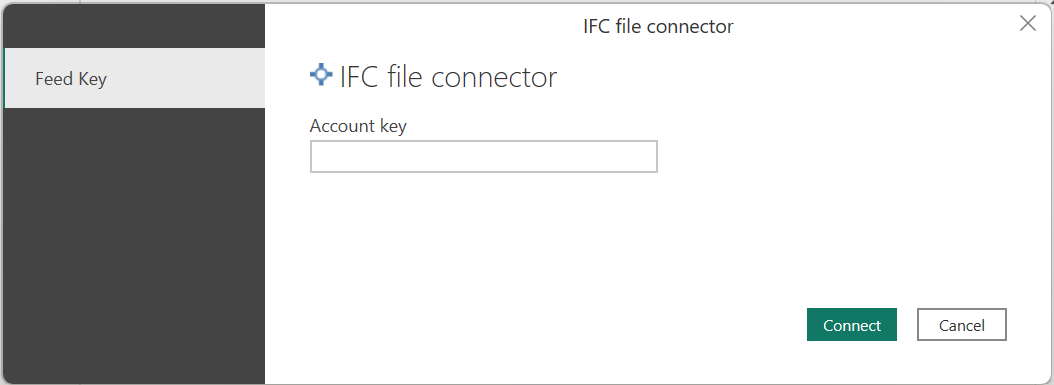
When prompted, enter the IFC file URL, SharePoint folder path, or local folder path you want to load. The connector supports single
.ifcfiles and folders that contain.ifcfiles.If accessing SharePoint content, sign in with your Microsoft 365 organizational account when prompted.
Choose Transform Data to modify the query or Load to import directly.
After loading, you can reference the connector columns directly in visuals, build relationships to master data tables, or create calculated tables for specialized reporting.
Tip
The connector returns one row for each extracted item. The same GlobalId can appear on multiple rows when an element has several properties, quantities, materials, or classifications. Use grouping or summarizing in Power Query or DAX when you need one row per element for charts or slicers.
Load folders and subfolders
In the current AppSource sample report, direct IFC file paths work in Filepath, Filepath2, and Filepath3 without the connector. Folder loading and subfolder loading require the IFC connector (.mez) and Pro features. The Subfolders parameter works after the connector is installed.
- In Power BI Desktop, open Home > Edit parameters.
- Paste a folder path into
Filepath. - Leave
Subfoldersset toFALSEto load only IFC files directly in that folder. - Set
SubfolderstoTRUEto also load IFC files from nested folders. - Select OK, then apply the changes.
Use Filepath2 and Filepath3 for additional direct IFC file paths. For folder loading, use Filepath.
Enable complete IFC data
The AppSource sample report includes the Fullproperties parameter. Use this parameter to control whether the report loads the standard viewer data or the complete IFC metadata.
- Install the IFC connector (
.mez). - Open Home > Edit parameters.
- Set
FullpropertiestoTRUE. - Select OK, then apply the changes.
Keep Fullproperties set to FALSE when you only need the standard viewer data or when the connector is not installed.