Load and filter one or multiple IFC files in Power BI
Use this setup when a Power BI report loads one or multiple IFC files. It explains how to keep one complete IFC file available during initial loading and how to show only the files that match the current report filter.
The same initial-loading requirement applies to both single-file and multiple-file reports. A filter can come from a file slicer, project selection, discipline, building, phase, URL filter, or another report table.
Initial IFC model loading is file based. The visual needs matching rows from the IFC table that contain IfcChunk. Those rows are filtered by Filepath or Filename.
For the initial load, the filter context must keep all IfcChunk rows for at least one IFC file. If the report contains only one file, all required chunks for that file must remain available. If another filter removes its IFC chunks, the file is incomplete and the visual cannot load it.
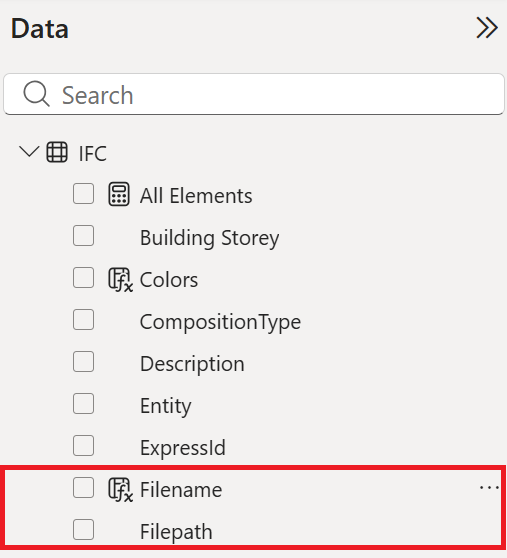
Filter by file name or file path
Keep a file reference in the report data and connect it to the generated IFC table. The file reference can be part of a project table, file table, schedule table, or another table that already controls filtering in the report.
Use the IFC file name or the full file path as the file reference.
| File reference | Use it when |
|---|---|
Filename |
File names are unique across the report. |
Filepath |
Different folders can contain IFC files with the same name. |
When a user selects a project, discipline, phase, building, or file, Power BI filters the matching Filename or Filepath values. The viewer then receives the matching IfcChunk rows and loads the corresponding IFC file or files.
For project-based workflows, connect each project to its IFC file names or file paths. The project selection then filters those file references, and the viewer loads the related IFC models.
Example data model
Create a file table with one row for each complete IFC file. For a single-file report, the table needs only one row.
| File ID | Project | Filename | Filepath |
|---|---|---|---|
| 1 | Project A | architecture.ifc |
…/architecture.ifc |
| 2 | Project B | structure.ifc |
…/structure.ifc |
The generated IFC table contains the IFC chunks and element data. The following table is a simplified example. The connector generates the actual IfcChunk values.
| Filepath | Filename | GlobalId | Entity | IfcChunk |
|---|---|---|---|---|
…/architecture.ifc |
architecture.ifc |
[generated chunk 1] |
||
…/architecture.ifc |
architecture.ifc |
[generated chunk 2] |
||
…/architecture.ifc |
architecture.ifc |
2abc… |
IfcWall |
|
…/architecture.ifc |
architecture.ifc |
3def… |
IfcDoor |
|
…/structure.ifc |
structure.ifc |
[generated chunk 1] |
||
…/structure.ifc |
structure.ifc |
4ghi… |
IfcBeam |
Create a one-to-many relationship that filters the generated IFC table by file path:
IFC files[Filepath] (1) ────── (*) IFC[Filepath]
Use IFC files[Filename] in the file slicer. When a user selects architecture.ifc, Power BI must keep every row for that file, including both generated chunk rows. In a report with only one file, the file table can contain one row. Do not apply an element or property filter that removes required IFC chunks during the initial load.
Configure the viewer visual
Bind the visual to the standard IFC query fields:
| Viewer field | Power BI column |
|---|---|
IFC Chunks |
IFC[IfcChunk] |
IDs |
IFC[GlobalId] or IFC[GlobalIdCaseSensitive] |
Keep Filepath and Filename in the IFC table even if you do not place them in the visual. Power BI uses one of these columns to filter the rows that contain the IFC file data.
No special viewer setting is required for this scenario. The important configuration is the file reference that filters the generated IFC table.
Set up file-based filtering
- Load all required IFC files into the report with the standard Flinker Power Query setup.
- Confirm that the
IFCtable containsIfcChunk,Filepath,Filename, andGlobalId. - Add the matching IFC
FilenameorFilepathvalue to the data that controls filtering. - Connect that file reference to
IFC[Filename]orIFC[Filepath]through your existing model. - Use your existing slicer, URL filter, or report interaction.
- Test by selecting a project, file, or other filter value and checking that the viewer loads the expected IFC file or files.
Answers to common questions
Why does the viewer fail to load the IFC file when the report is already filtered
The report filter is applied before the visual renders. For the initial load, the visual must receive all IfcChunk rows for at least one complete IFC file. If a filter removes these rows, the file is incomplete and the visual shows No IFC files found. This issue can occur in reports that load one IFC file or several IFC files.
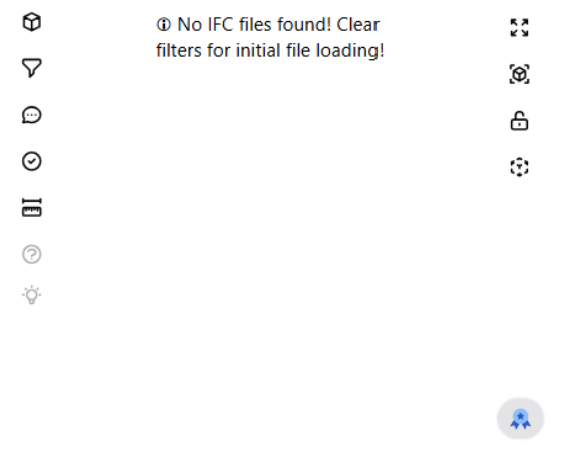
Clear the filters that remove the IFC chunks, and then let the visual load one complete IFC file. After the initial load finishes, apply filters to the model as needed.
Does the viewer require IFC files to be loaded before the report filter is applied
The IFC data must already be available in the Power BI dataset after refresh. During the initial visual load, the active filter context must keep all IfcChunk rows for at least one IFC file. A file-level filter can select that file by Filepath or Filename, but other filters must not remove any of its IFC chunks.
What setup supports initial IFC loading under an active filter
Use the existing Power BI model, and make sure the active report filter reaches the generated IFC table through file references. Those references must match IFC[Filename] or IFC[Filepath] and keep one complete IFC file available to the visual. Do not use GlobalId as the file-loading key because it can filter out required IFC chunks.