Manage ISO 19650 document approvals in SharePoint
Use approval requests to record whether project documents are ready for their intended use. Configure the reviewers once for a SharePoint library, then request, approve, or reject selected files from SharePoint or Microsoft Teams.
Use approvals in an ISO 19650 workflow
ISO 19650-2 treats review and approval as part of the managed production and exchange of information. The project must define who makes each decision, what they check, and what happens after the decision.
An approval process can include different decision points:
| Decision | Typical responsibility | Purpose |
|---|---|---|
| Review and approve for sharing | Task team or appointed party | Confirm that the information meets the agreed requirements and is suitable for a specified use. |
| Authorize the information model | Lead appointed party | Confirm that approved information can be submitted for the planned exchange. |
| Accept the information model | Appointing party | Confirm that the delivered information meets the appointment requirements. |
The UK BIM Framework guidance for ISO 19650 explains that an unsuccessful review should result in rejection, with the reason and required changes recorded.
Configure approvals as an administrator or project manager
SharePoint modern approvals use the same approval service as the Approvals app in Microsoft Teams. Configure the default reviewers and routing for each document library before project team members submit files.
Before you start
- Install ISO 19650 on the SharePoint site if users need its multi-file approval actions.
- Use an account that can manage the document library settings.
- Define the review criteria, responsible people, required stages, and rejection process.
- Give each approver permission to open the files that they must review.
- Confirm that the Approvals app is available in your Microsoft Teams environment.
Enable approvals for a document library
- Open the SharePoint document library.
- On the command bar, select Integrate > Configure Approvals.
- Turn on Enable Approvals.
- Turn on Enable default approvers.
- Add the people or supported groups that should review documents in this library.
- To create a multi-step approval, add approvers to two or more numbered stages.
- Turn on Require responses in the assigned order to run the stages one after another.
- Select Apply.
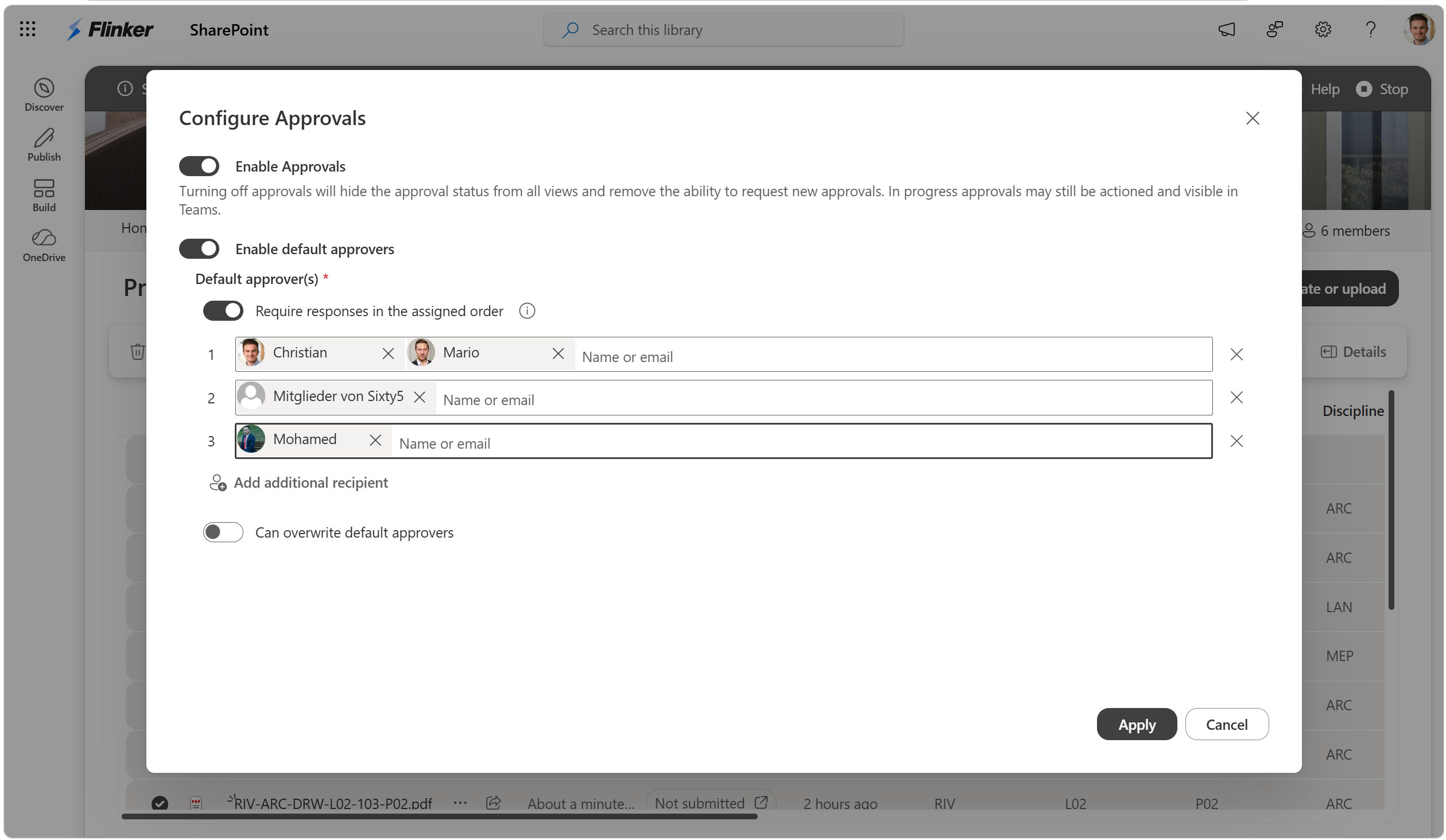
ISO 19650 uses the library's default approvers when it creates requests. The Request action is unavailable when no default approvers are configured.
For Microsoft's setup instructions, see Approvals in Lists and Document Libraries.
Configure one or multiple approval stages
SharePoint supports multi-step approvals. Each numbered row is a stage. When Require responses in the assigned order is on, the next stage starts after the preceding stage is approved. A rejection stops the request.
- Add one approver for a simple review gate.
- Add more than one person when several reviewers can participate in a stage.
- For reviewers who act in parallel, choose whether the first response completes the request or every assigned approver must respond.
- Turn on Require responses in the assigned order when the request must move through numbered stages in sequence.
- Use separate stages when the project must distinguish approval, authorization, and acceptance.
Use groups as approvers
Microsoft Approvals can send requests to individuals and supported groups. Microsoft documents support for mail-enabled Microsoft 365 groups and security groups. One member's response represents the group.
Group approvals have an important notification limitation. Microsoft Teams notifications are sent to individually assigned approvers, but not to groups. Group members can find the request in the Approvals app or receive the group's email notification when group email is configured correctly. For supported behavior and limitations, see Request approvals from Microsoft 365 groups.
Request or respond to approvals for multiple files
ISO 19650 adds one place to review the approval state of several files and run the same available action for all of them. It uses the library's Microsoft approval settings and creates a separate approval request for each file.
Open View approvals
- In the document library, select one or more files.
- On the command bar, select View approvals.
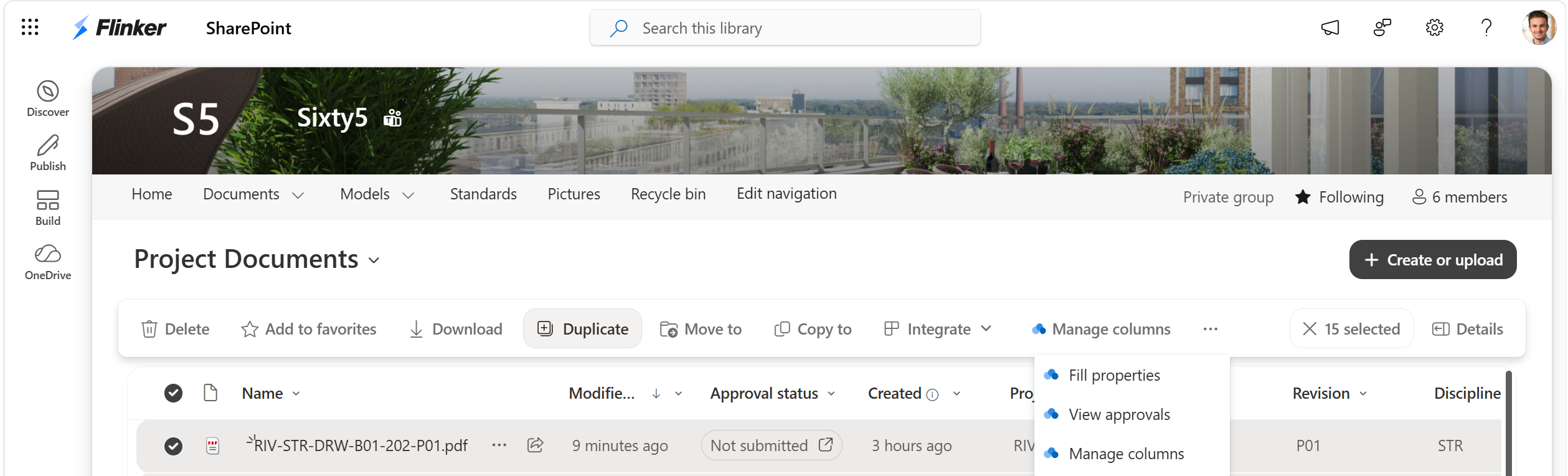
The dialog loads the current Microsoft approval state for every selected file.
Request approval for multiple files
- Confirm that every selected file has the Not submitted state.
- Review the predefined approvers shown in the dialog.
- Select Request.
- Review the result for any file that could not be submitted.
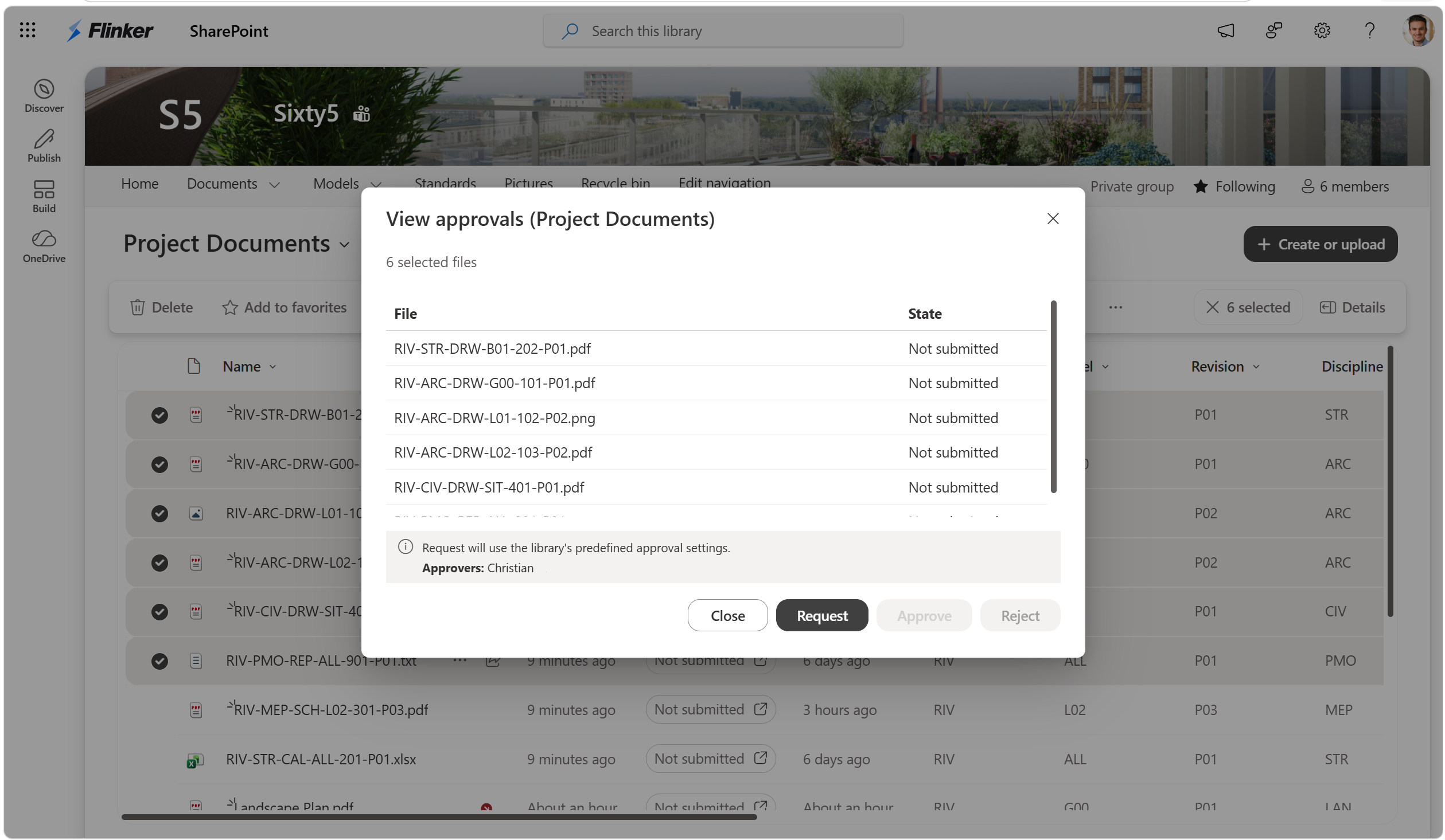
Each file receives its own approval request. Microsoft applies the default approvers, response rule, and assigned order configured for the library.
Approve or reject multiple files
- Select files with the Requested state.
- Select View approvals on the command bar.
- Confirm that you are allowed to respond to every selected request.
- Select Approve or Reject.
- Review the result for any file that could not be updated.
The available action depends on the state and the signed-in user:
| Selected file state | Available bulk action | Requirement |
|---|---|---|
| Not submitted | Request | The library has default approvers. |
| Requested | Approve or Reject | The signed-in user can respond to every selected request. |
| Approved or Rejected | None | The approval is complete. |
| Mixed states | None | Select files with the same state and try again. |
The app reports partial results when Microsoft updates some files but not others. Review each reported failure before retrying.
Respond and review history in Microsoft Teams
Approvers can respond in SharePoint or in the Approvals app in Microsoft Teams.
- Open Microsoft Teams.
- Select More added apps (...), search for
Approvals, and open the app. - Open the approval request.
- Review the file and request details.
- Select Approve or Reject.
SharePoint approval columns show the latest activity for a file. Use the Teams Approvals app to review the full approval history, follow up, reassign a request, or cancel a request that you created.
Related tasks
For package delivery and optional receipt acknowledgment, set up document transmittals in SharePoint.