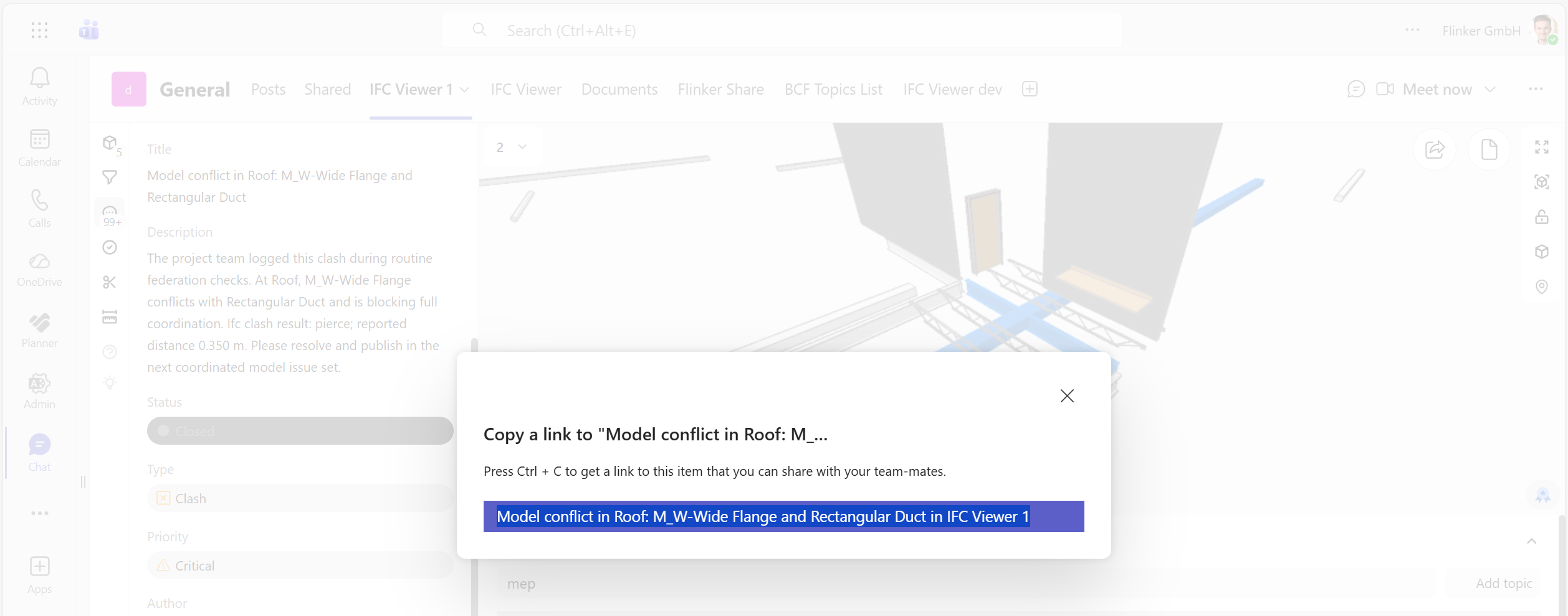
Share BCF topics as Teams deep links
Once your IFC and BCF files are loaded in the IFC Viewer for Microsoft Teams, you can share a direct Teams deep link to the currently selected BCF topic.
How it works
- Open the BCF Topics panel and select the issue you want to share.
- Click the Share button in the upper-right corner of the viewer.
- Teams opens its share dialog with a rich-text deep link for that topic.
- Press
Ctrl+C(Strg+Con German keyboards) to copy the link. - Paste the copied rich-text link into your Teams chat, post, or channel message.
Important
You must press Ctrl+C / Strg+C while the Teams share dialog is open. If you close the dialog without copying, the deep link is not copied.
When someone opens the deep link, the same Teams tab opens with that BCF topic selected so the saved issue context and viewpoint are shown immediately.
If the BCF topic has a title, Teams uses that title as the rich-text link label.