Manage ISO 19650 document names and metadata
Give everyone one clear way to identify and describe project documents. Consistent names and metadata make files easier to find, review, and share.
Keep project information clear and consistent
ISO 19650-1 provides a framework for exchanging, recording, versioning, and organizing information. A document name is one part of that process. Metadata adds the information people need to understand and manage the document.
Use ISO 19650 to apply the same document identification and metadata rules in SharePoint. Administrators and project managers set the rules once. Project team members use them whenever they prepare files.
Use the workflow to:
- Apply an agreed identifier or file name.
- Record metadata such as project, discipline, document type, level, revision, status, suitability, or classification.
- Find missing or incorrect values before documents are shared.
- Keep names and metadata consistent when files are updated in SharePoint.
Set up names and metadata as an administrator or project manager
Use this section if you define the project's information requirements or manage the SharePoint document library. Configure the identification and metadata rules once for each library where they must apply.
Before you start
- Install ISO 19650 on the SharePoint site.
- Identify the metadata that the project needs, such as Project, Discipline, Document type, Level, Revision, Status, Suitability, and Classification. You can import the columns and rules from an existing library or configure them yourself.
- Agree the identifier structure, separators, required metadata, and accepted values with the project information manager.
- Use an account with permission to manage the document library when you configure rules.
Open Manage columns
- Open the document library.
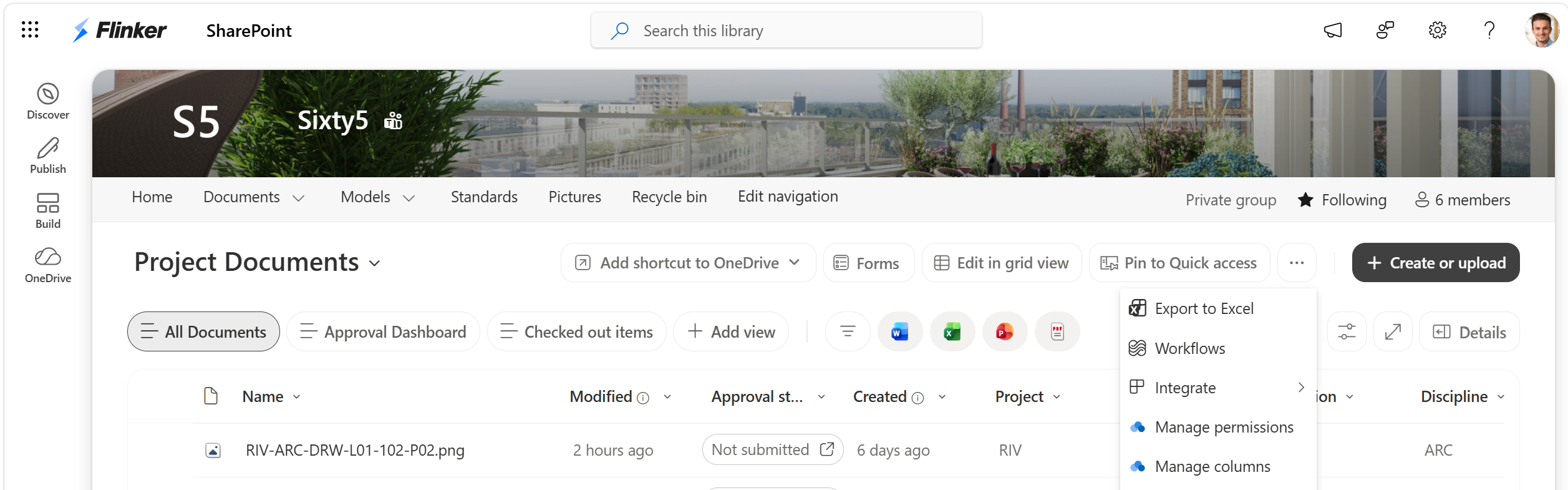
- On the command bar, select Manage columns.
If Manage columns is not visible on the command bar, open the More (...) menu to find it.
Import columns and rules from an existing library
Use Import from to reuse a library with a saved metadata policy. You do not need to create its columns first. The destination must have no saved policy, custom columns, or list validation.
- In Manage columns, select Import from.
- Choose the Source site and Source library.
- Select Review policy.
- Check the rules in Preview and make any project-specific changes in JSON.
- Select Save to copy the supported columns and apply the policy.
To apply a template to several libraries, open Manage columns in the source library and select Copy to. See Deploy library templates across SharePoint projects.
Configure document names and metadata from scratch
If you are creating a new configuration, first create the SharePoint columns that its rules will use. Then open Manage columns.
- Open the JSON tab.
- Enter the library configuration.
- Use the Reference tab to check the supported settings and view a complete example.
You can configure one or more recognized identifier layouts for a library. A layout can combine metadata such as project, originator, volume or system, level or location, type, role or discipline, and number. Other metadata, including revision, status, suitability, and classification, can remain in SharePoint columns without becoming part of the file name.
Preview and save the document rules
- Open the Preview tab.
- Confirm the identifier layout, accepted metadata values, required properties, and enforcement location.
- Select Save.
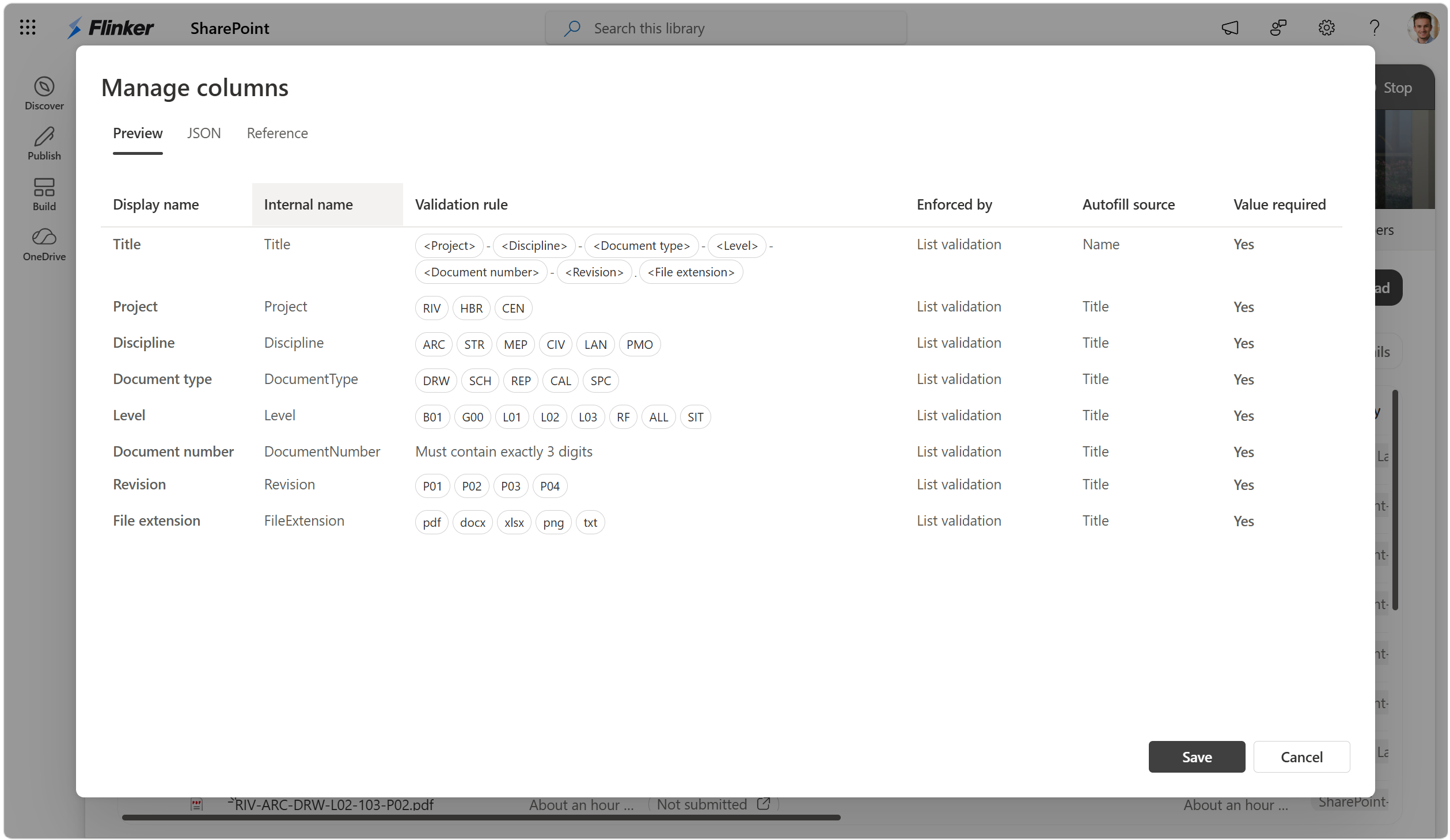
The Preview tab explains the active configuration without requiring users to read the JSON.
| Column | What it shows |
|---|---|
| Display name | The name that users see in SharePoint. |
| Internal name | The SharePoint name used in the configuration. |
| Validation rule | The accepted choices, text format, or complete naming layout. |
| Enforced by | Whether SharePoint applies the rule through list or column validation. |
| Autofill source | The property from which the value is extracted. |
| Value required | Whether the property must contain a value. |
The app rejects a configuration when it cannot reproduce the same rules with native SharePoint validation.
Apply names and metadata as a project team member
Use this section when you add or update project documents. Fill properties guides you through the required document name and metadata before you share the files.
Open Fill properties
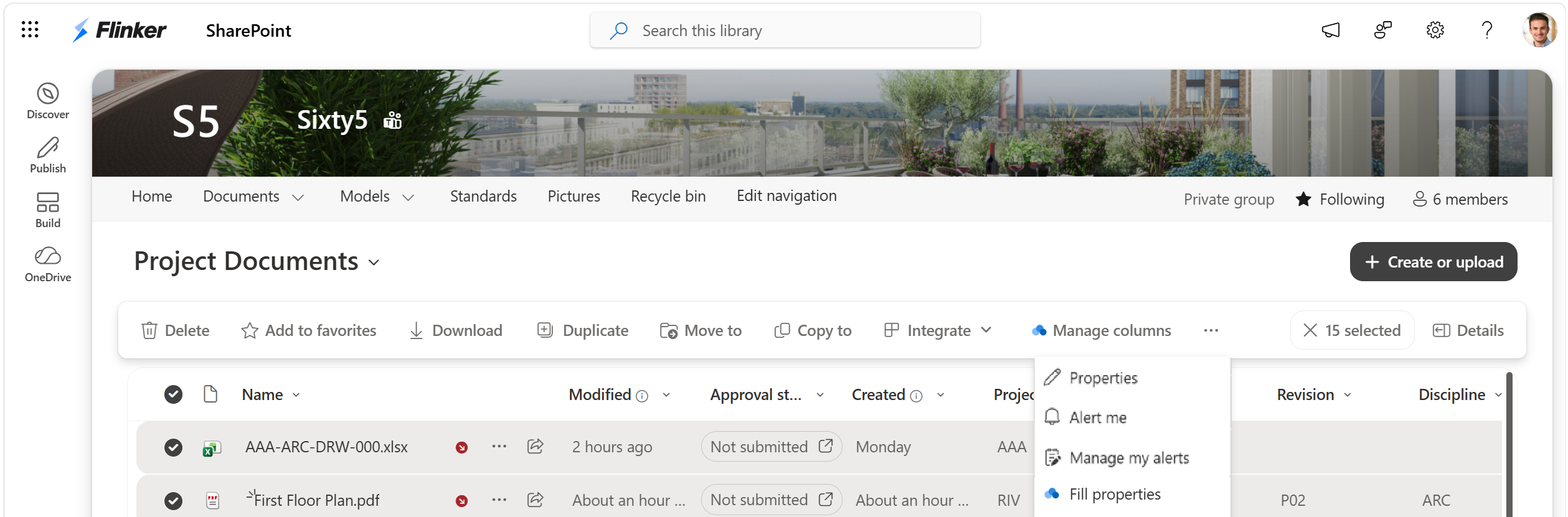
- Select one or more files in the document library.
- On the command bar, select Integrate > Fill properties.
Review and apply the document information
- Review the extracted values for each file.
- Correct every highlighted field. Use the available choices where the project has defined an accepted value list.
- Confirm that each row shows a green status.
- Select Fill properties to apply the values.
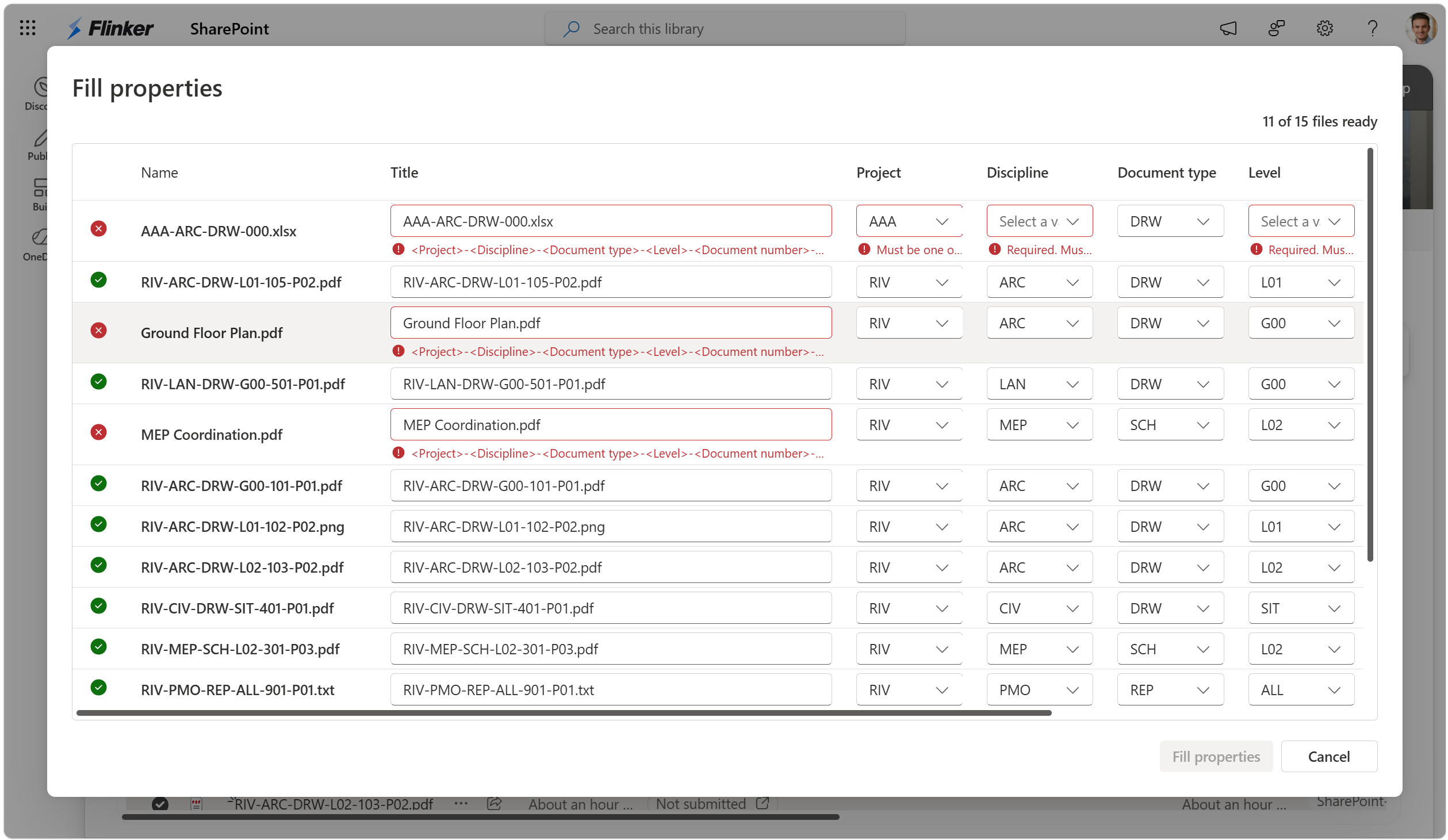
The table updates while you work. It shows the proposed document name when the configuration combines metadata into an identifier. A file is ready only when its name, required metadata, and relationships between values meet the configured rules.
If file renaming is enabled for the library, the proposed name updates as values change and is applied when the properties are filled. Otherwise, the existing file name remains unchanged and only the SharePoint properties are updated.
Understand what the document rules check
The library configuration can control:
- Required properties.
- Accepted metadata values for project codes, disciplines, document types, levels, revisions, status, suitability, classification, and file extensions.
- Simple text lengths and code formats.
- The order of parts in a document name.
- Separators such as hyphens, underscores, spaces, and the period before a file extension.
- Relationships between metadata and the document name.
- Alternative naming layouts for libraries that contain more than one recognized document type.
SharePoint continues to enforce the saved rules when users edit properties outside Fill properties. The app uses list and column validation to keep individual values and relationships between values consistent.
Fix files with invalid names or metadata
This section is for project team members who see a red row or cannot apply the document information. A red row means that the document name or one or more metadata values are missing or invalid. Correct the highlighted cells until the row turns green.
Common causes
Common causes include:
- A required value is empty.
- A code is not in the accepted value list.
- A number has the wrong length or format.
- The combined metadata does not match an accepted document identifier layout.
- A proposed rename changes the original file extension.
- The file is checked out and still needs required information.
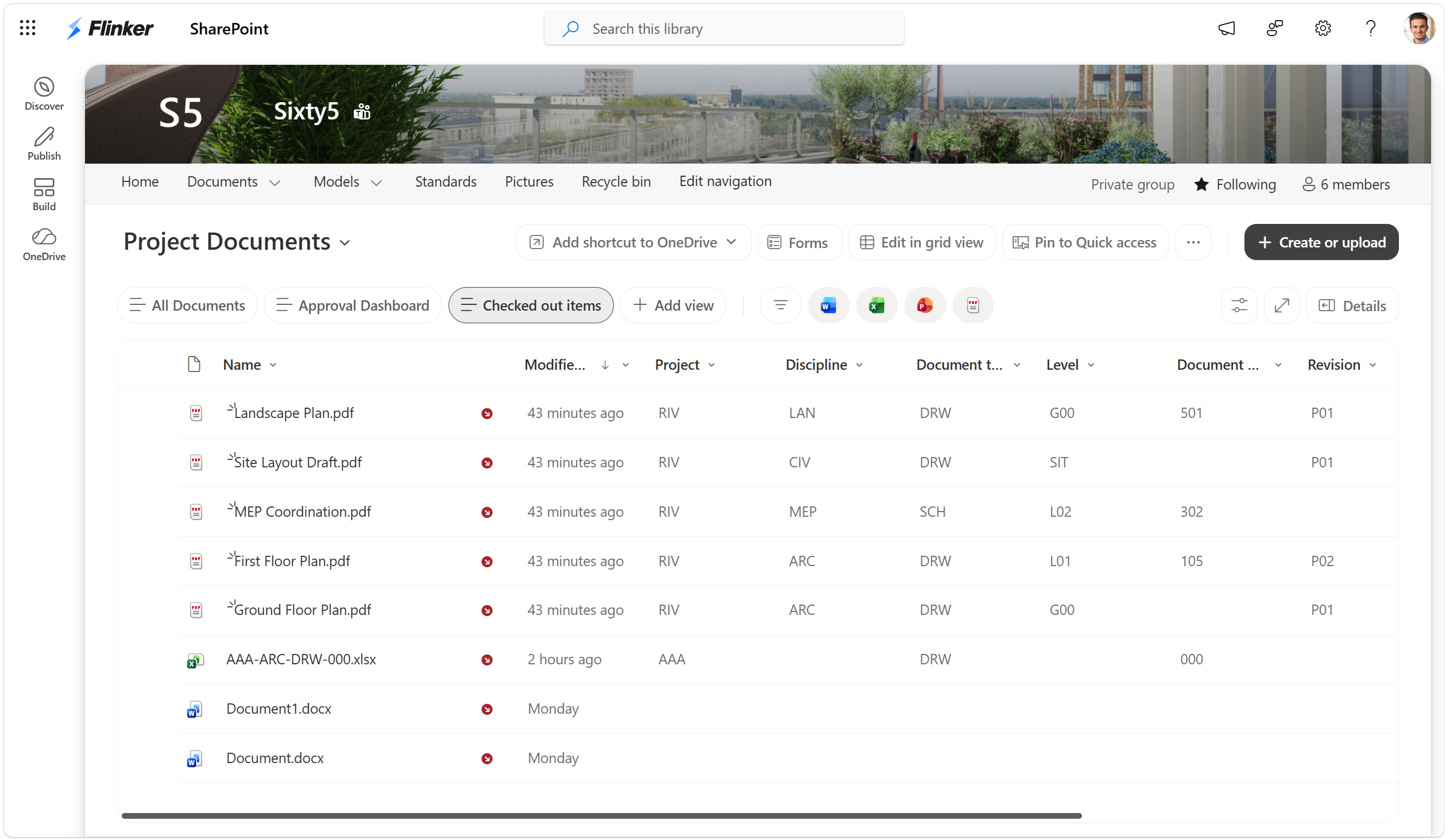
Resolve checked-out files
- Return to the SharePoint document library.
- Select the Checked out items view.
- Select one or more affected files.
- On the command bar, select Integrate > Fill properties.
- Correct the highlighted values until each row shows a green status.
- Select Fill properties to apply the values.
If the app reports that the configured validation is out of sync, open Manage columns, review the Preview, and save the configuration again.