2D drawing overlays (PDF)
The 2D Drawing Overlay feature lets you place a 2D PDF floor plan directly on top of the IFC model floor view.
This makes it easier to:
- compare floor plans against the IFC model
- review room layouts and annotations
- validate geometry and drawing alignment
- inspect consultant drawings in context
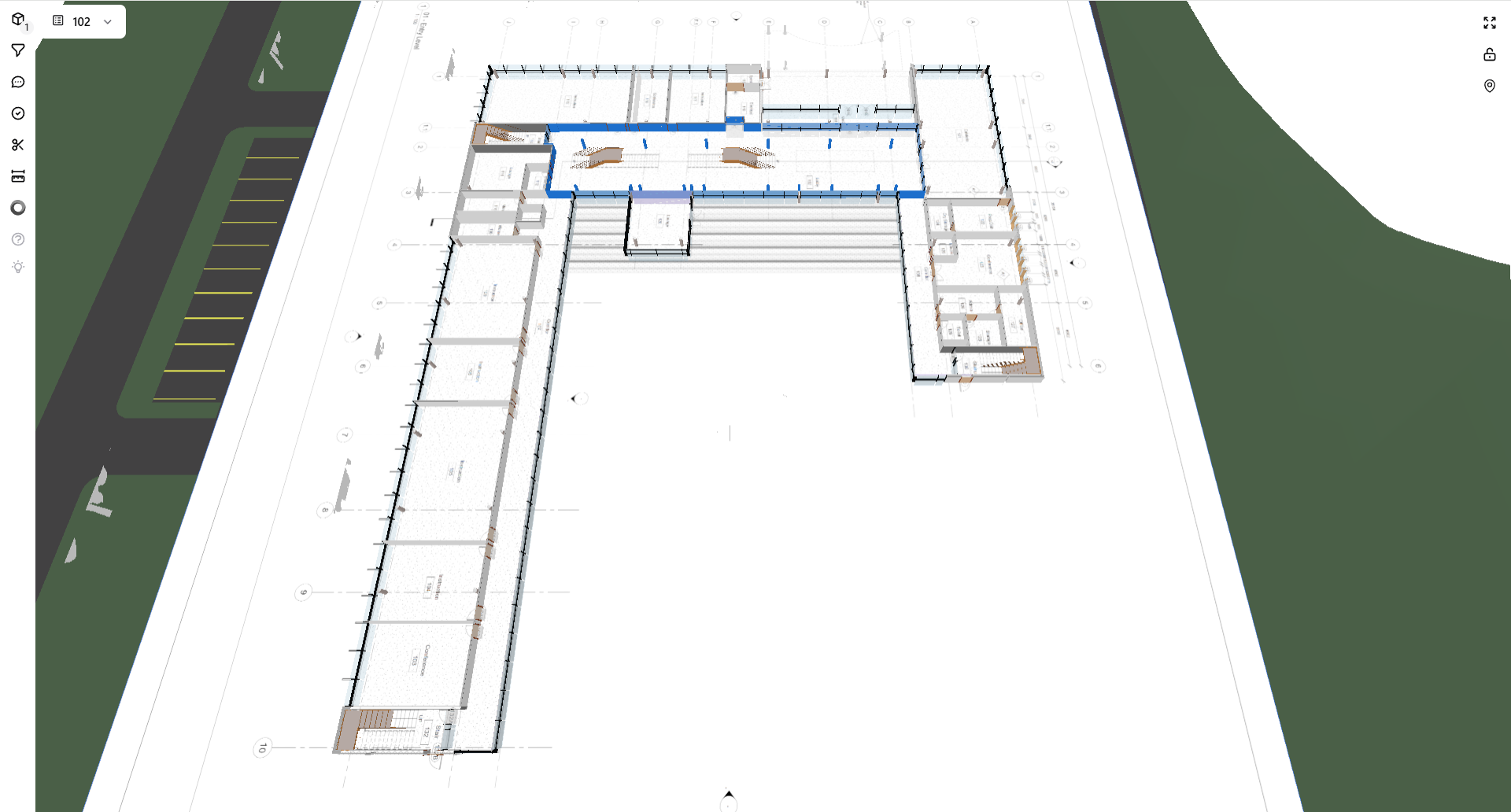
How it works
The PDF Overlay workflow allows a PDF floor plan to be aligned with the IFC floor plan view.
After calibration, the PDF can be displayed directly on top of the model for comparison and review.
Workflow overview
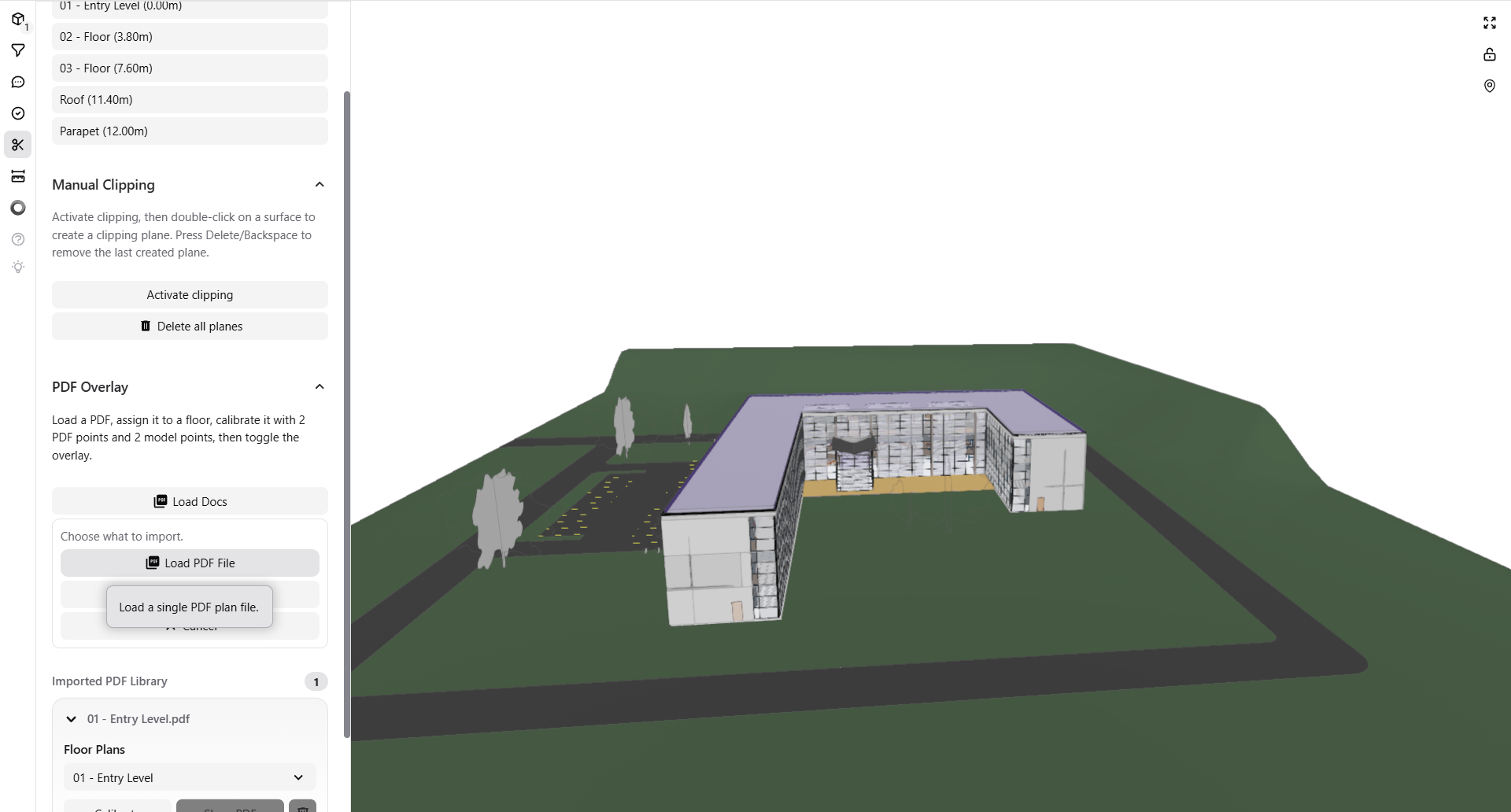
Step 1 - Load the PDF file
Open PDF Overlay, select Load Docs, and import the PDF floor plan you want to use.
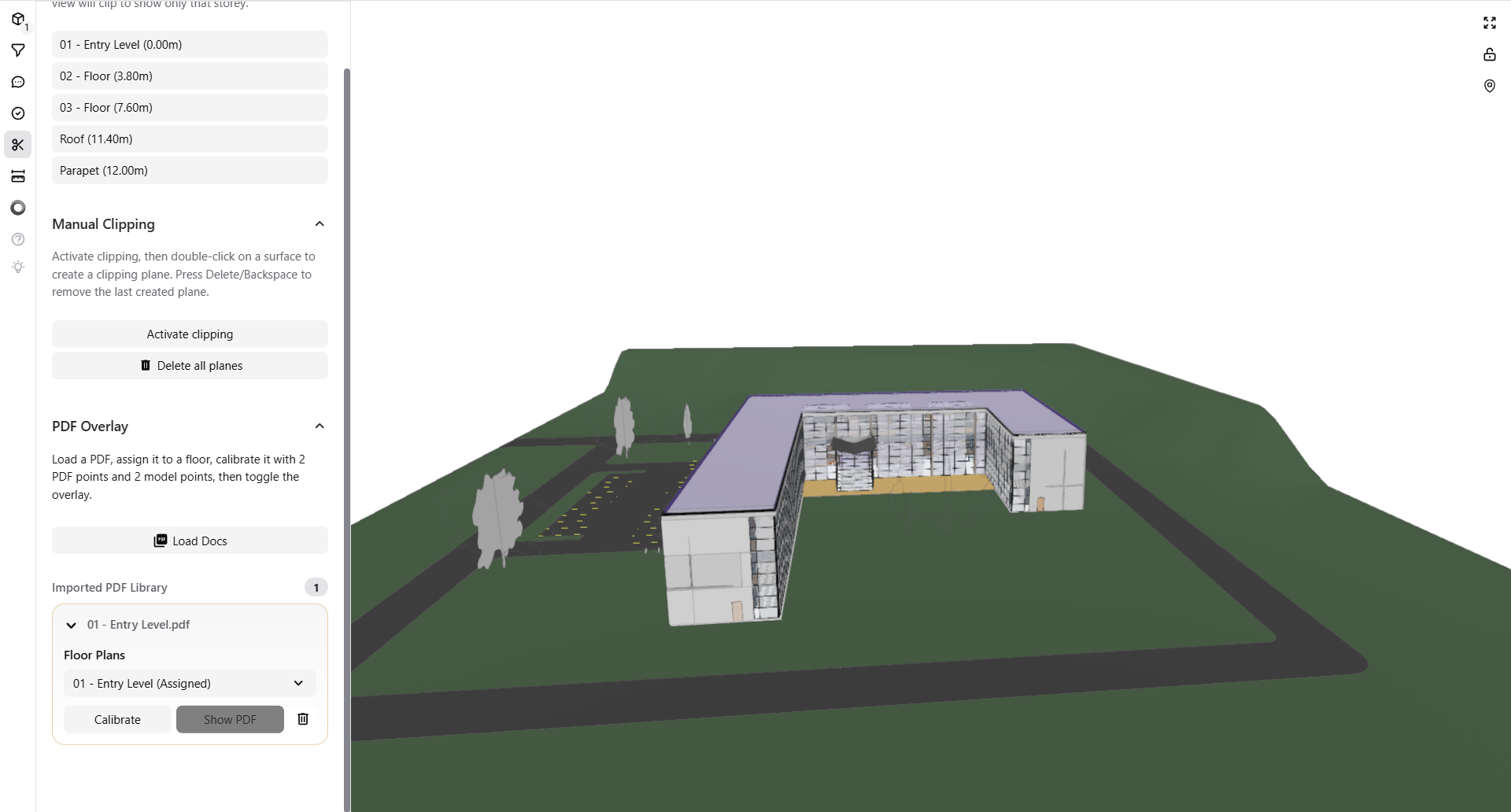
Step 2 - Assign the PDF to a floor
Choose the correct floor plan level so the PDF is linked to the appropriate IFC floor.
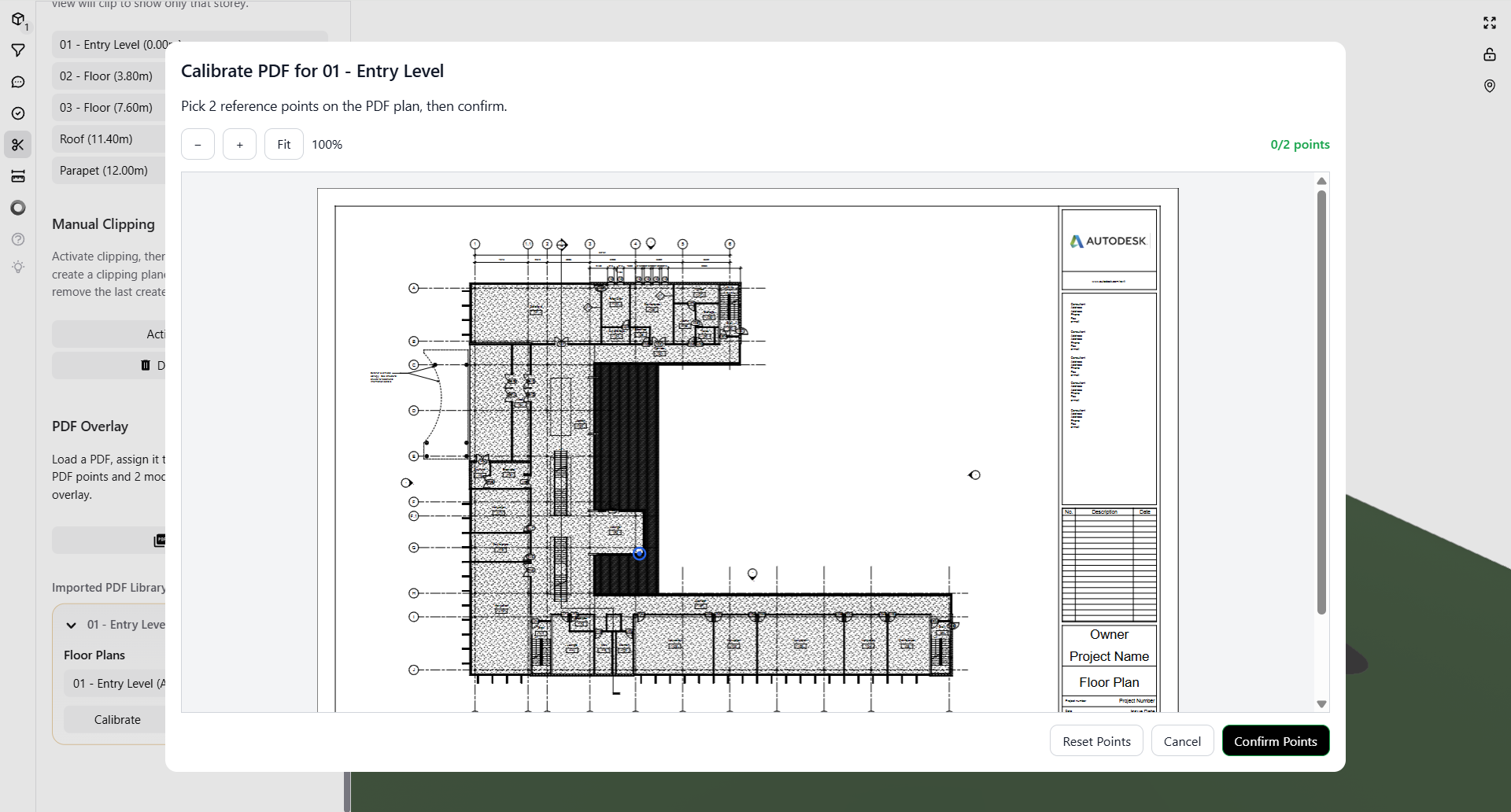
Step 3 - Open the calibration view
Click Calibrate and Pick two clear reference points on the PDF drawing.
Good examples include:
- wall corners
- shaft corners
Step 4 - Select matching points in the IFC model
In the IFC floor plan view, click the same two locations used in the PDF.
This allows the viewer to align the PDF with the IFC geometry.
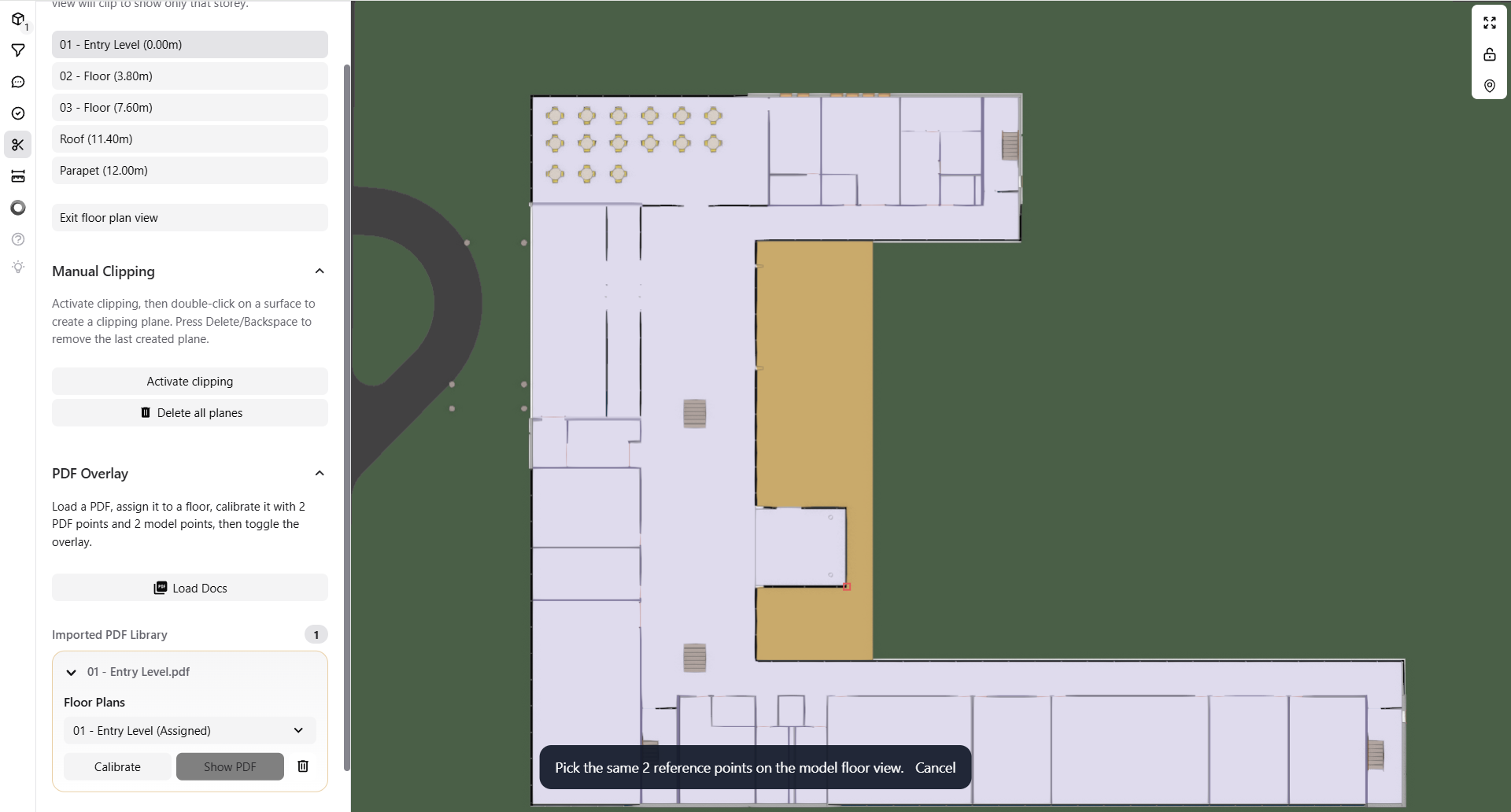
Step 5 - Show the aligned PDF overlay
Click Show PDF to display the aligned PDF directly on top of the model.
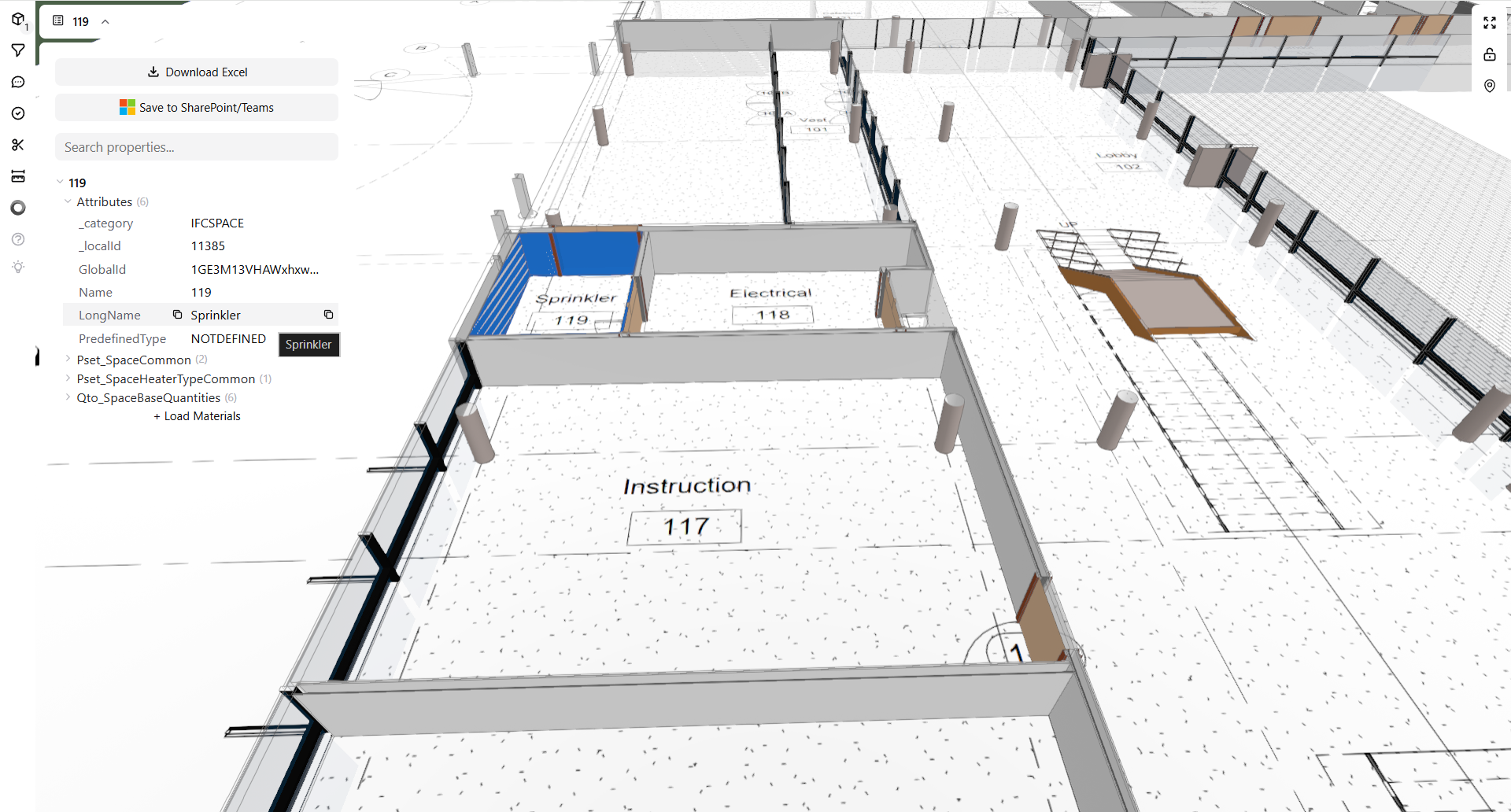
Best results
For the best alignment quality:
- choose points that are easy to identify in both views
- select points that are far apart from each other
- use clear corners or grid intersections
- verify that the correct floor is selected
What this is good for
The PDF Overlay workflow is useful for:
- comparing consultant drawings against IFC geometry
- checking room labels and annotations
- reviewing floor layouts directly in the viewer
- validating drawing-to-model consistency
Troubleshooting
PDF does not align correctly
Check whether:
- the correct floor was selected
- the same points were picked in both views
- the points are clearly identifiable
- the selected points are far enough apart
PDF does not appear
Possible reasons:
- the PDF was not assigned to a floor
- calibration was not completed