Use the IFC Viewer in Excel
Use this guide to load IFC geometry into Excel, open the model in the IFC Viewer task pane, and keep worksheet selections linked with the 3D model. The IFC Viewer Add-in for Excel works best when the workbook already contains IFC geometry and element identifiers, so Excel becomes the working surface for tables, filters, formulas, reports, and connected PivotTables while the task pane provides the linked 3D view.
For a security review before deployment, see the Excel add-in security FAQ.
Load IFC geometry in Excel
For most projects, the recommended setup is to use the existing Power Query from the Power BI sample report. This creates a workbook structure that the add-in can read consistently and makes the overall workflow easier to maintain.
Get the query here: Copy the IFC loading query from the sample report
The Power Query approach is recommended because it:
- keeps geometry data (
IFC Chunks) and IFC IDs in a consistent structure - makes refresh easier when the IFC file changes
- makes the workbook easier to reuse and share
Before you open the add-in, make sure the workbook contains the data needed by the viewer and by the Excel linking workflow:
- geometry data in
IFC Chunks - IFC element IDs with valid IFC GUID values
- an Excel table for the model data on the worksheet you want to sync from
Note
Loading from a local IFC file path can also work, but the Power Query workflow is the preferred setup for repeatable Excel-based workflows.
Once the query is in place, the loading process is straightforward. The goal is to make sure the workbook contains the current geometry data before the add-in starts.
Paste the copied Power Query into Excel
After you copy the IFC loading query from the Power BI sample report, add it to your Excel workbook by using Power Query in Excel Desktop.
- Open the workbook in Excel Desktop.
- Go to the Data tab.
- Open Power Query by choosing Get Data and then starting the Power Query Editor.
- Create a Blank Query.
- In Power Query Editor, open Advanced Editor.
- Replace the existing content with the copied IFC loading query.
- Select Done to save the query.
- Select Close & Load to load the query results into the workbook.
After the query is loaded, Excel creates the table structure that the IFC Viewer add-in can use for geometry loading and selection linking.
- Refresh the query so the workbook contains the latest
IFC Chunksand IFC IDs. - Save the workbook if needed.
- Start the IFC Viewer add-in from the ribbon.
- Wait for the add-in to load the model from the workbook.
When the add-in opens, it reads the workbook content and initializes the viewer from that data:
- it reads IFC geometry from the workbook
- it loads the model automatically if
IFC Chunksare present - it loads updated geometry after you refresh the query and reopen or refresh the add-in
How selection sync works
Selection sync is based on IFC GUID values. This is what allows worksheet data and 3D elements to stay connected while you review the model in Excel.
Excel to viewer
Use Excel to drive the 3D selection when you want to review items from a filtered list, a report table, or a PivotTable summary.
The current selection-sync code does not scan arbitrary worksheet cells. It supports these Excel structures:
- the first Excel table on the active worksheet
- PivotTables on the active worksheet that are connected to an Excel Table or cell range in the same workbook containing IFC GUID values
Selections outside those structures are not used for Excel-to-viewer sync.
Excel tables
For standard worksheet selection sync, the add-in reads the first table on the active worksheet and intersects your row selection with that table body.
Select rows inside that table to send the matching IFC elements to the viewer.
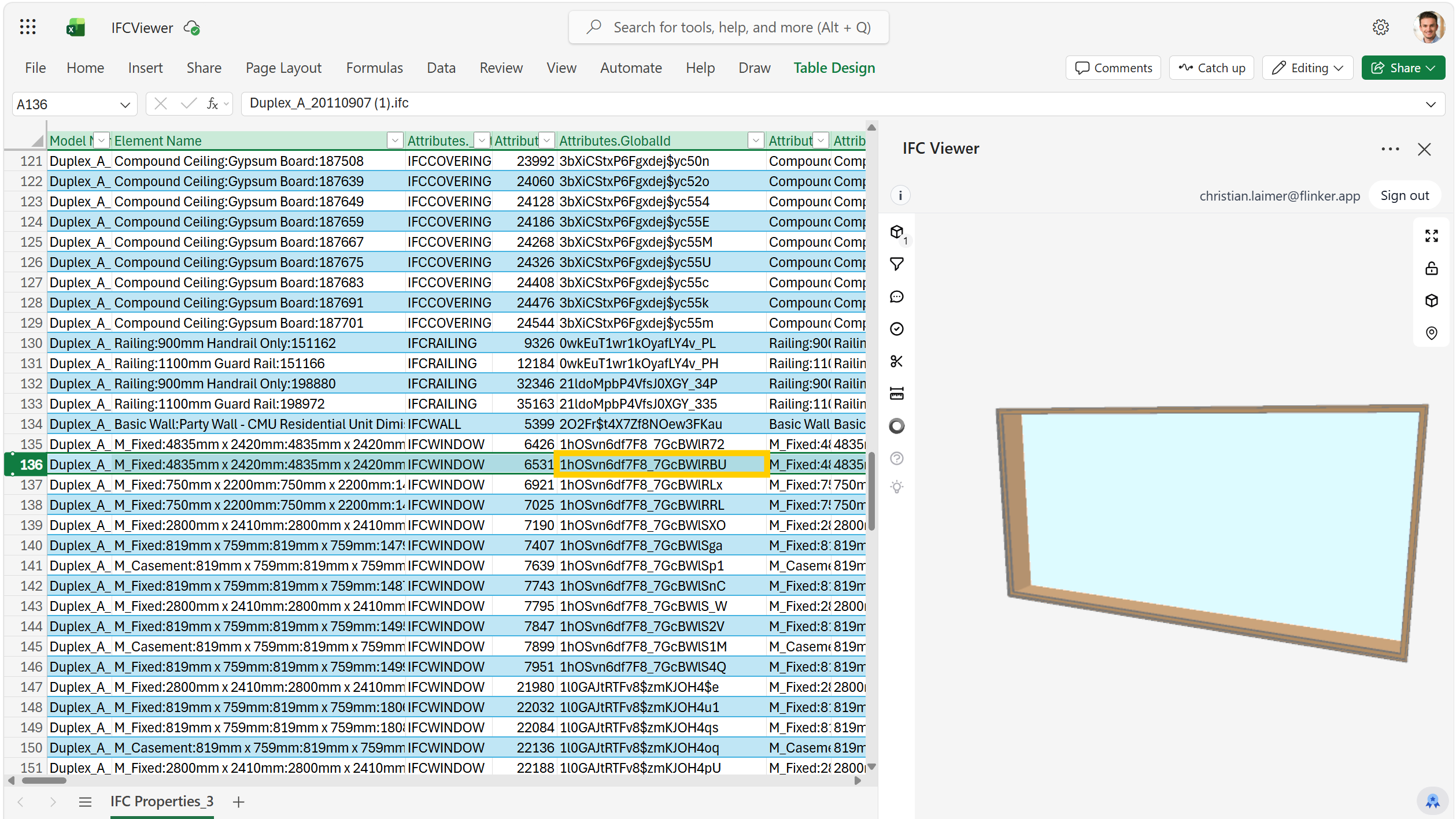
- Only visible rows in that table are used. Filtered-out rows are ignored.
- The add-in scans the visible values in the selected table rows and picks the IFC GUIDs it finds there.
Connected PivotTables
PivotTable selections are supported when the PivotTable is connected to an Excel Table or cell range in the same workbook.
Select a row label or a value cell in the PivotTable to send the matching IFC elements to the viewer.
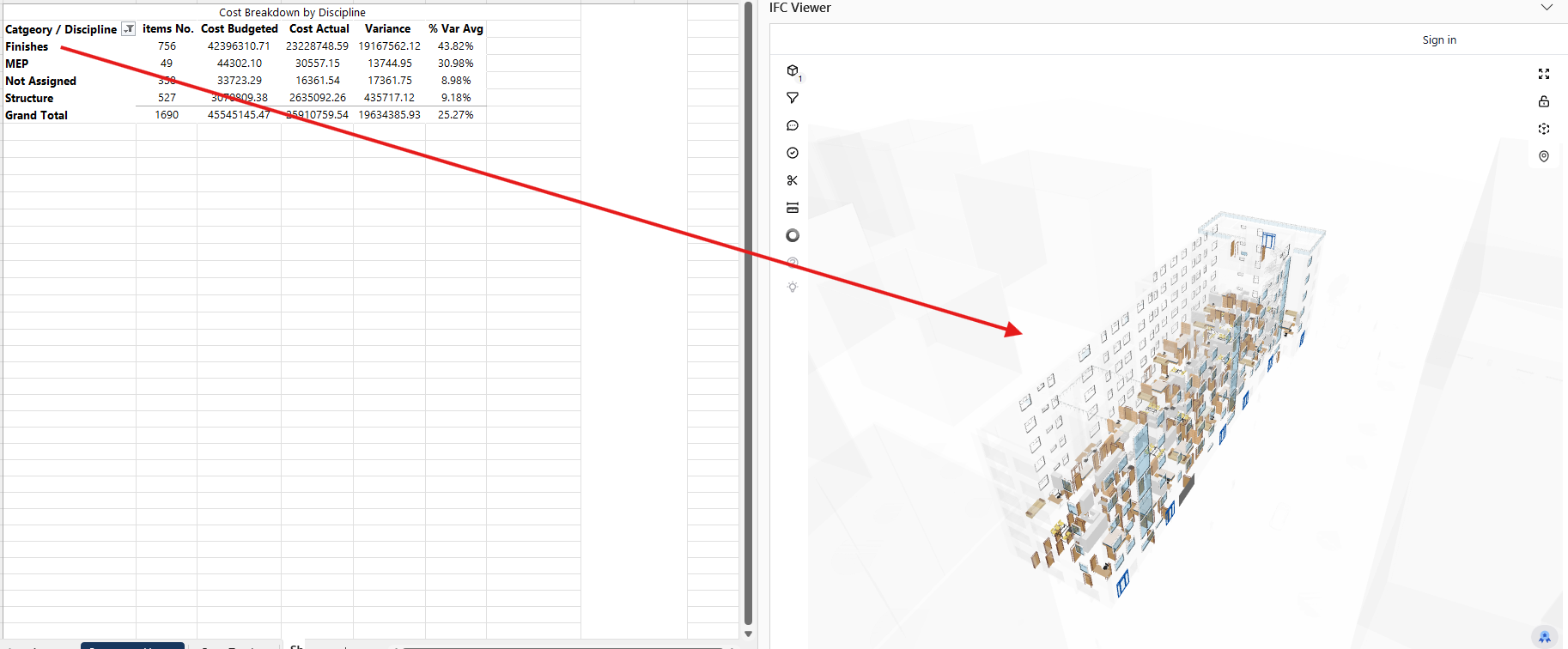
- The add-in resolves the selected PivotTable entry back to the underlying source rows and collects their IFC GUID values.
- This works best when the PivotTable source still contains a
GUIDorGlobalIdcolumn with valid IFC GUID values. - PivotTable sync is intended for PivotTables based on an Excel Table or cell range in the same workbook.
Viewer to Excel
Use the viewer to drive Excel when you want to inspect which row or record belongs to a selected model element.
Select an element in the 3D viewer.
- Excel highlights matching row values in the active worksheet.
- This works best when the IFC ID column is named
GUIDorGlobalId.
Prepare the workbook
Workbook preparation has a direct effect on how reliable the linking feels in day-to-day use. A clear and consistent table structure reduces sync issues and makes the workbook easier to share with other users.
Use these rules for the most reliable result:
- Keep one clear column with valid IFC GUID values.
- Do not change the GUID values with formatting or formulas.
- Keep the geometry data (
IFC Chunks) from the Power Query output. - Keep the source data in an Excel table on any worksheet where you want standard row-based selection sync.
- If you use filters, remember that only visible table rows take part in Excel to viewer sync.
- If you build a PivotTable, keep it connected to an Excel Table or cell range in the same workbook that still contains the IFC GUID source column.
Export data from the viewer to Excel
The viewer can export data back into Excel as new sheets or tables. This is useful when you want to continue working with viewer output by using standard Excel features such as formulas, pivots, formatting, and charts.
Use the export action in the viewer to send IFC property data into Excel:
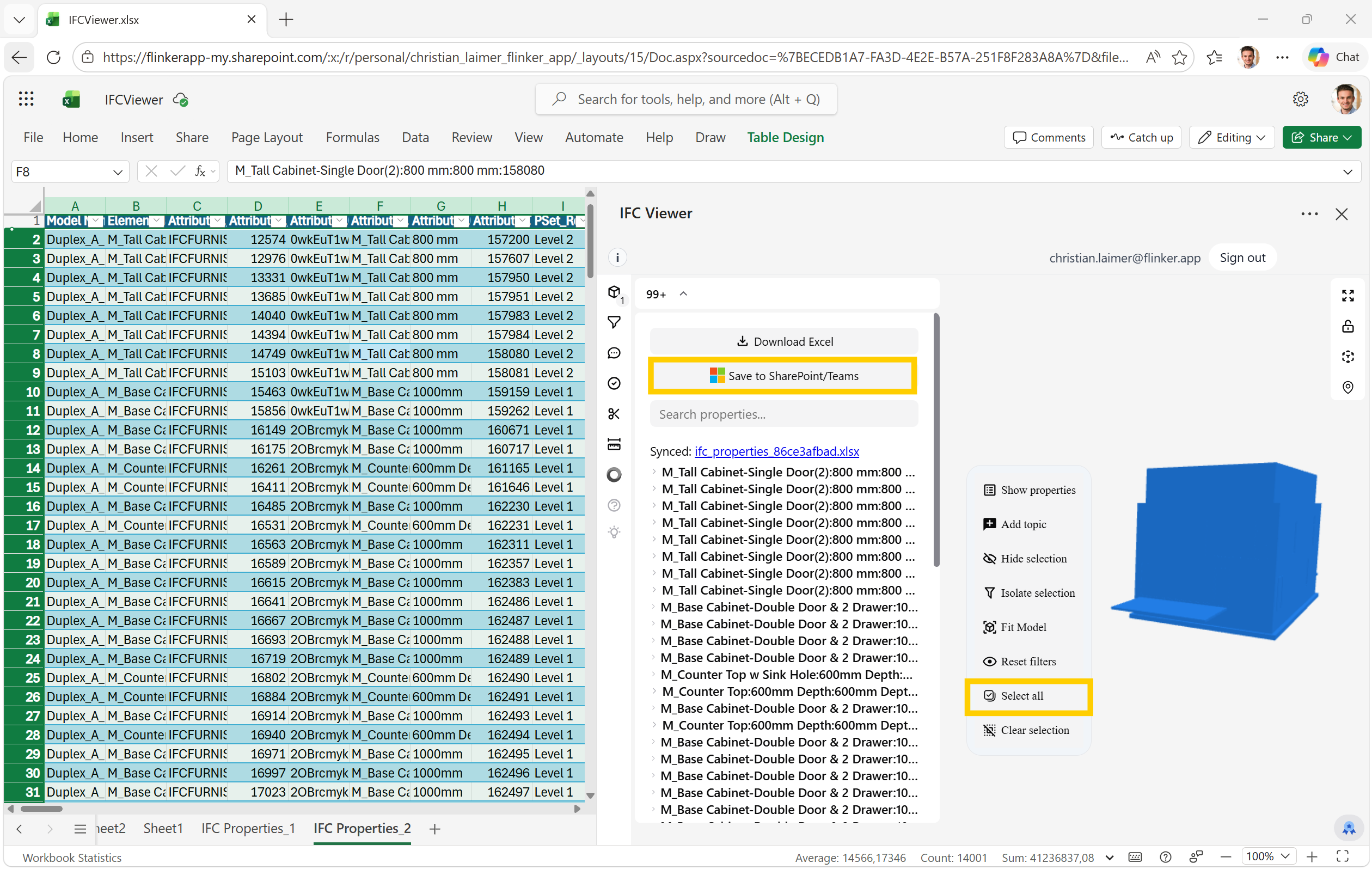
When you run an export:
- The add-in creates new worksheet(s) in the workbook.
- The exported data is inserted as Excel sheets/tables.
- You can continue working with formulas, pivots, and reports in Excel.
Limitations
The current workflow focuses on loading IFC data into Excel and using Excel as the working environment around the model. It does not provide direct write-back from edited worksheet values to the original IFC file.
- Loading IFC data into Excel is supported.
- Exporting viewer data into Excel is supported.
- Writing edited worksheet values back into the IFC file is not supported in this flow.
Troubleshooting
If loading or sync does not work as expected, start by checking the workbook content before looking for viewer issues. In most cases, the cause is missing geometry data, mismatched GUID values, or a workbook structure that no longer matches the expected query output.
The model does not load
- Refresh the Power Query and save the workbook.
- Check that
IFC Chunksare still present in the workbook. - Close and reopen the add-in.
- Check that sign-in and network access are working.
Selection sync does not work
- Check that the IFC GUID values in Excel match the loaded IFC model.
- Check that the GUID values were not changed by formulas or formatting.
- Check that you are selecting rows inside the worksheet table or inside a supported PivotTable.
- Check that the worksheet table you want to sync from is the first table on that worksheet.
- If the issue is only with a PivotTable, check that it is based on an Excel Table or cell range in the same workbook and that the source data still contains IFC GUID values.
- If viewer to Excel highlighting is inconsistent, rename the ID column to
GUIDorGlobalId.
FAQs
Working from Excel — how to work with models hosted on SharePoint?
The recommended setup is to use Power Query to load the IFC model data into the Excel workbook. The Power Query can point to an IFC file hosted on SharePoint as its data source. Once the query is set up, refresh it inside Excel Desktop to pull the latest geometry and element data from the SharePoint-hosted file directly into the workbook. After refresh, the IFC Viewer add-in reads the geometry from the workbook itself — not directly from SharePoint — so the viewer works reliably regardless of where the source file is stored.
From Excel, when loading data, why do we have to click "Load from SharePoint"?
The IFC Viewer add-in reads geometry from the Excel workbook, not directly from SharePoint. The "Load from SharePoint" step triggers the Power Query refresh, which fetches the latest IFC data from SharePoint and writes it into the workbook. This is a one-time step per session or per model update — once the geometry is loaded into the workbook, the viewer initializes directly from that workbook content without needing to contact SharePoint again.
How to save work in Excel without having to reload the model?
The model data is stored inside the workbook itself through Power Query output. This means You can save the workbook at any point without triggering a model reload. Saving does not refresh the Power Query — a refresh only happens when you explicitly run Data > Refresh All or refresh a specific query. The IFC Viewer add-in reloads the model only when you reopen or refresh the add-in, not when you save the workbook. To preserve your current state (commercial inputs, filters, notes), simply save the workbook normally — the model geometry and your manual data stay together in the same file.
Is it possible to create a PivotTable from the data table and have the selection reflected in the viewer at the same time?
Yes. The IFC Viewer for Excel supports selection sync from PivotTables. When you select a row label or a value cell in a PivotTable, the add-in resolves the selection back to the underlying source rows, collects their IFC GUID values, and highlights the matching elements in the 3D viewer.
For this to work reliably:
The PivotTable must be connected to an Excel Table or cell range in the same workbook. The source data must still contain a GUID or GlobalId column with valid IFC GUID values.
A practical example of this workflow is shown in the IFC Excel Cost Tracker, where PivotTable summaries by storey, trade, or category stay linked to the 3D model: IFC Excel Cost Tracker