IFC model queries and property sets
The IFC model queries and property sets feature in Flinker allows users to create, combine, and toggle multiple filters to quickly locate, isolate, and visually compare IFC elements based on
models, attributes, classes, storeys, and property set values.
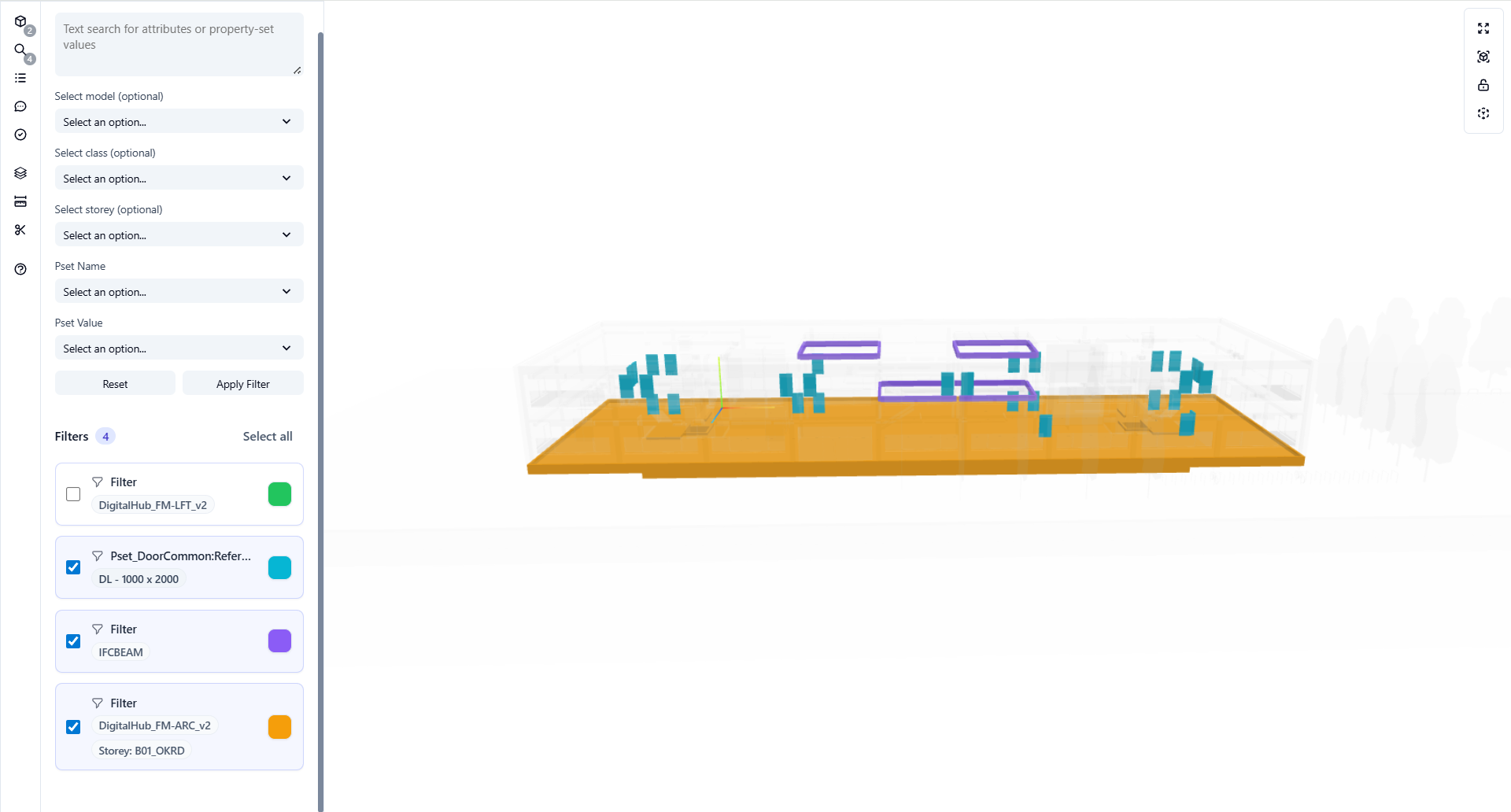
Each filter represents a logical query and can be displayed using a distinct color, enabling clear visual analysis and comparison directly inside the 3D viewer. The filters panel shows active filters and applies the selected colors to matching elements in the model view.
What are IFC model queries?
IFC model queries provide advanced filtering and visualization tools to query IFC models using:
- IFC models
- IFC classes (e.g.
IfcDoor,IfcBeam) - Building storeys
- Property sets (Psets)
- Property values (text, boolean, numeric)
Unlike basic search, IFC model queries allow you to add multiple filters at the same time, assign unique colors, and toggle them on or off to create different analytical views of the same model.
All filter results are reflected instantly in the 3D view.
Why use IFC model queries?
Multi-filter analysis
Apply several filters simultaneously to understand how different element groups relate to each other.
Visual comparison
Each filter is color-coded, making it easy to compare systems, storeys, or property-based classifications.
Toggle and focus
Enable or disable filters individually to focus on specific datasets without losing context.
Data-driven insight
Analyze models based on IFC properties and attributes rather than geometry alone.
Filter capabilities
Text search
Use the Text search field to match:
- Element GlobalId (GUID)
- IFC attribute values such as Name, Tag, or ObjectType
- Property-set values
This is useful for quick lookups when the exact property set is unknown, for example searching by element name, tag, or a full identifier like:
Basic Wall:Wall-Ext_102Bwk-75Ins-100LBlk-12P:285459
Model filtering
The Model filter lets you limit results to specific IFC models when multiple models are loaded.
You can:
- Select one model to filter elements only from that model
- Select multiple models to include elements from all selected models
Model filtering is combined (intersected) with other active filters:
- IFC Class
- Storey
- Property Sets (Psets) and values
- Text search
Only elements that satisfy all selected criteria are returned.
This ensures precise filtering across federated models without mixing unrelated elements.
Class filtering
Limit a filter to a specific IFC class, such as:
IfcDoorIfcWindowIfcWallIfcSlabIfcBeam
This helps reduce noise and improves performance when working with large models.
Storey filtering
Restrict filters to a specific building storey to analyze elements floor by floor or validate correct element placement.
Property set filtering
Filter elements using Property Sets (Psets) and their values.
You can filter by:
Pset name only
Example:
Pset_DoorCommon:IsExternal
→ Matches all elements that contain this property, regardless of its value.Pset name and value
- Pset Name:
Pset_DoorCommon:IsExternal - Pset Value:
true
→ Matches only elements where the property value equalstrue.
- Pset Name:
This enables precise queries based on BIM data rather than geometry alone.
Visual feedback in the viewer
When filters are applied:
- Each filter highlights matching elements using its assigned color
- Multiple filters can be active and visible at the same time
- Non-matching elements are faded or visually de-emphasized
- Filters can be toggled on or off instantly
This allows users to create clear visual sets and compare different data groups directly within the model.
Practical use cases
BIM data validation
Verify that required properties (e.g. fire rating, external/internal flags) are correctly assigned.Design review
Visually separate systems such as doors, windows, or structural elements.Model auditing
Detect missing or inconsistent property values across storeys or classes.Facility management preparation
Identify assets based on operational properties before handover.
Export filtered properties
After a filter creates a selection, you can open the selection properties panel to inspect the matching element data or export it to Excel.
Use the properties table to choose which property sets, quantities, relationships, and element fields are included in the export. For the full workflow, see View and export IFC properties.
Reset and refine filters
Use the Reset button to clear all filters and restore the full model view.
You can iteratively refine your analysis by combining, toggling, and adjusting multiple filters.
Reusing filters across projects
Because filter configurations are saved as part of a BCF file, they are inherently portable. The filter state - hidden elements, selected items, clipping planes - is stored inside the file itself, making it part of the open BCF standard.
This means a filter configuration created in one project can be loaded in any other Teams channel, SharePoint folder, or BIM tool instantly - without any manual recreation.
How to reuse a filter configuration:
- Set up the desired filters in the IFC Viewer.
- Save the current view as a BCF topic.
- Store the BCF file in a shared SharePoint location.
- Load the BCF file in any project or Teams channel to restore the full filter configuration immediately.
Because BCF is an open standard, the same file works across projects, buildings, and tools - any number of times.
Tip
See BCF integration for a full overview of how BCF files store and transfer view states.