View and export IFC properties
Use the selection properties panel to inspect IFC attributes, property sets, quantity sets, and relationship data for selected model elements.
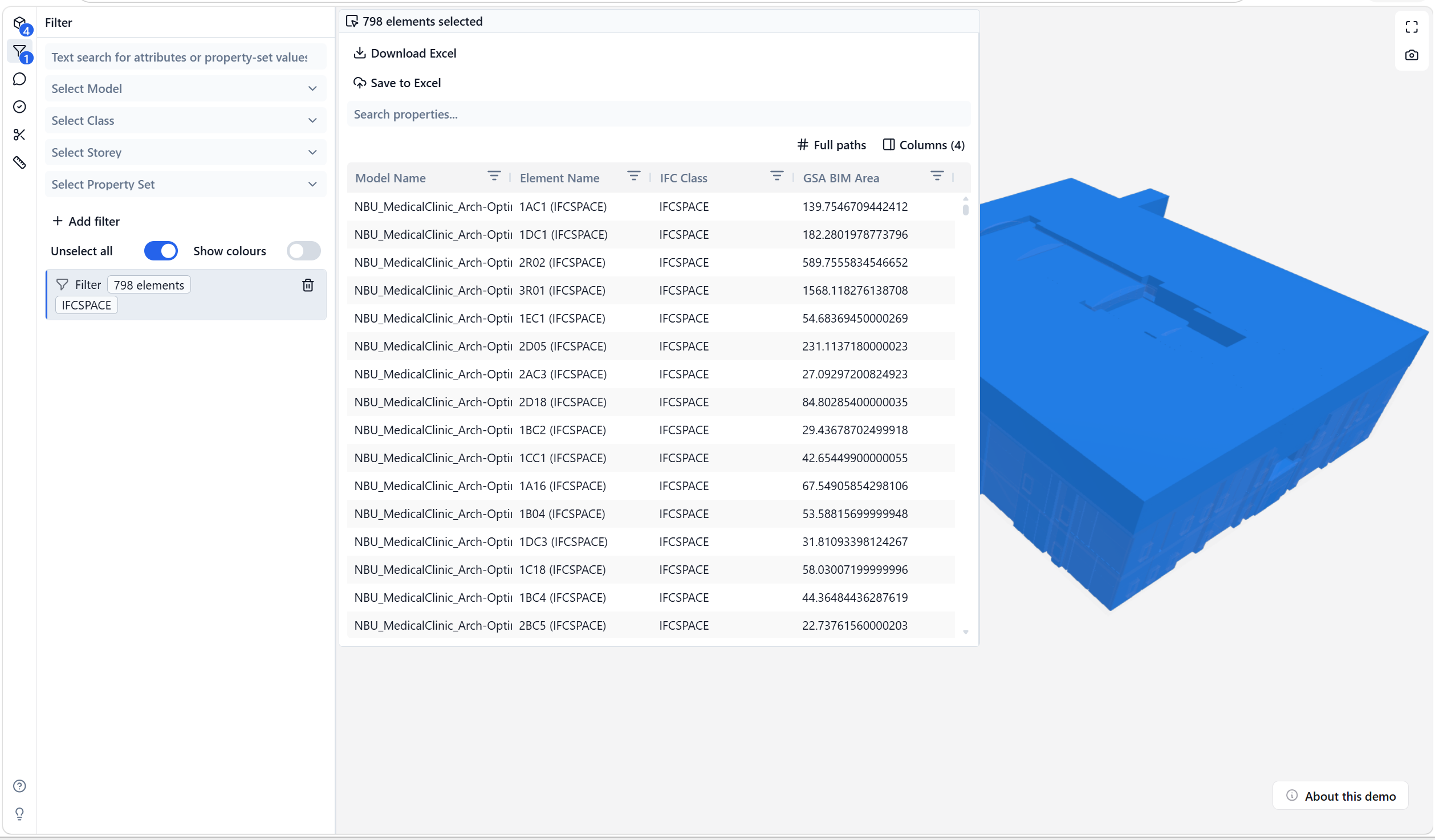
You can export the current selection as an Excel file, or open the properties table first to choose which columns are included.
Open the properties panel
- Select one or more elements in the IFC model.
- Open the selection panel from the selection button.
- Choose one of the available actions.
The panel shows these actions before the full property table is loaded:
- Download Excel
- Save to Excel, when the current app supports saving back to Excel
- View Properties Table
Use Download Excel when you need a quick .xlsx file. Use View Properties Table when you want to inspect the data first or choose which property columns are exported.
View selected element properties
When one element is selected, the panel shows the element properties as grouped property cards.
When more than one element is selected, the panel uses a table. Each row is a selected element. Each column is an IFC attribute, property, quantity, relationship, or model metadata field.
Choose columns before export
Select Columns to choose which properties are shown in the table and included in the next export.
The column picker groups columns by IFC data structure, such as Element, IFC Entity, Property Sets, Quantity Sets, and Relationships. Expand a group to choose individual properties. Use Select all to include or remove all columns.
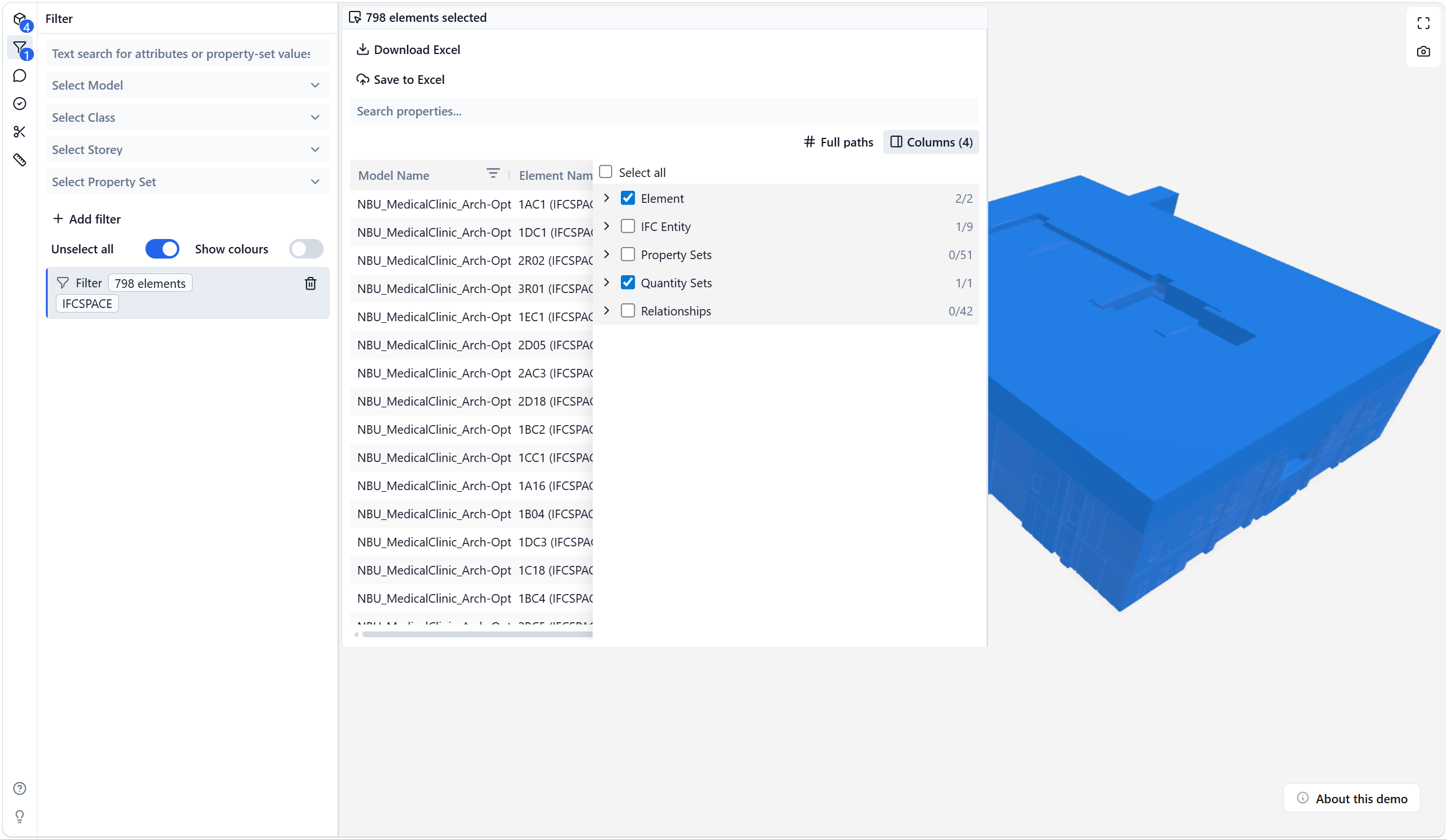
The number in the Columns button shows how many columns are currently visible. The counts in the picker help you understand how many selected elements contain values for each property.
Use short or full column names
Use Full paths to switch between compact column names and full dotted property paths.
Short names are easier to scan in the viewer. Full paths are useful when different property sets contain properties with the same name.
Search loaded properties
After the table is loaded, use Search properties to filter the visible table content. Search is available only after properties are loaded.
Export to Excel
Use Download Excel to create a local .xlsx file from the current selection.
If the properties table is open, the export uses the visible columns from the table. Hidden columns are not included. If the table is not open, the viewer exports the selected element properties with the default export behavior.
Use Save to Excel in supported Microsoft 365 app surfaces, such as the IFC Viewer Add-in for Excel or the IFC Viewer for Microsoft Teams. For host-specific behavior, see IFC data integration for Microsoft Excel.
Work with large selections
For large selections, the viewer may wait before loading the full properties table. This keeps the model review workflow responsive.
You can still use Download Excel directly, or choose View Properties Table when you need to inspect and customize the columns before export.