IFC data integration for Microsoft Excel
Use the IFC Viewer to save selected IFC element properties to Excel from supported Microsoft 365 app surfaces.
Save to Excel is supported in the IFC Viewer Add-in for Excel and in the IFC Viewer for Microsoft Teams.
For the general properties panel workflow, including selecting columns before export, see View and export IFC properties.
For manual length and area measurements, see Export manual measurements to Excel.
Choose what is exported
Before exporting, select one or more model elements. You can select elements directly in the model or use filters to create a larger selection.
Open View Properties Table when you want to inspect the selected data first. The table shows one row per selected element and columns for IFC attributes, property sets, quantity sets, relationships, and model metadata.
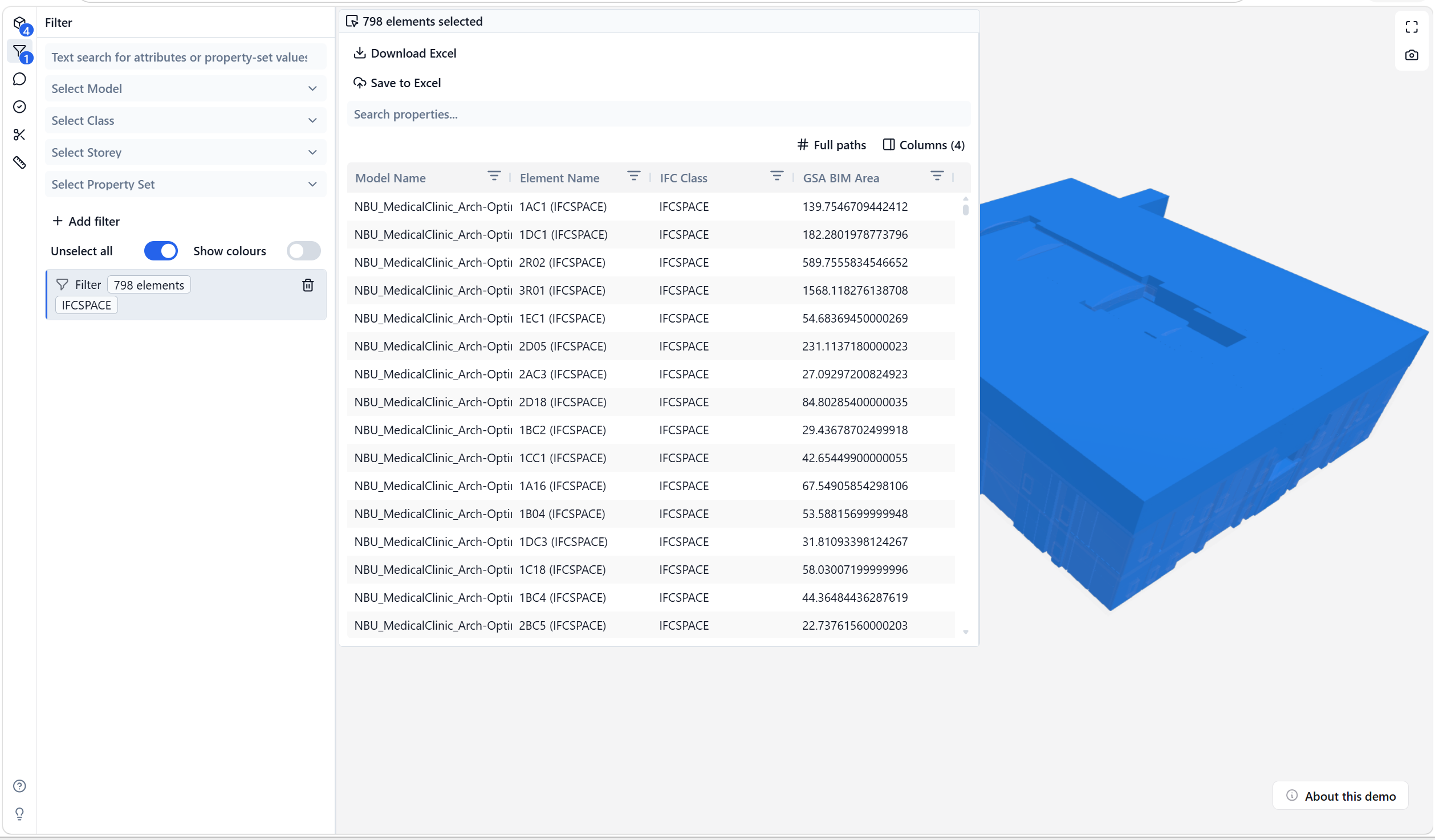
Use Columns to show or hide property groups and individual properties. The visible columns in the table are used for the next export.
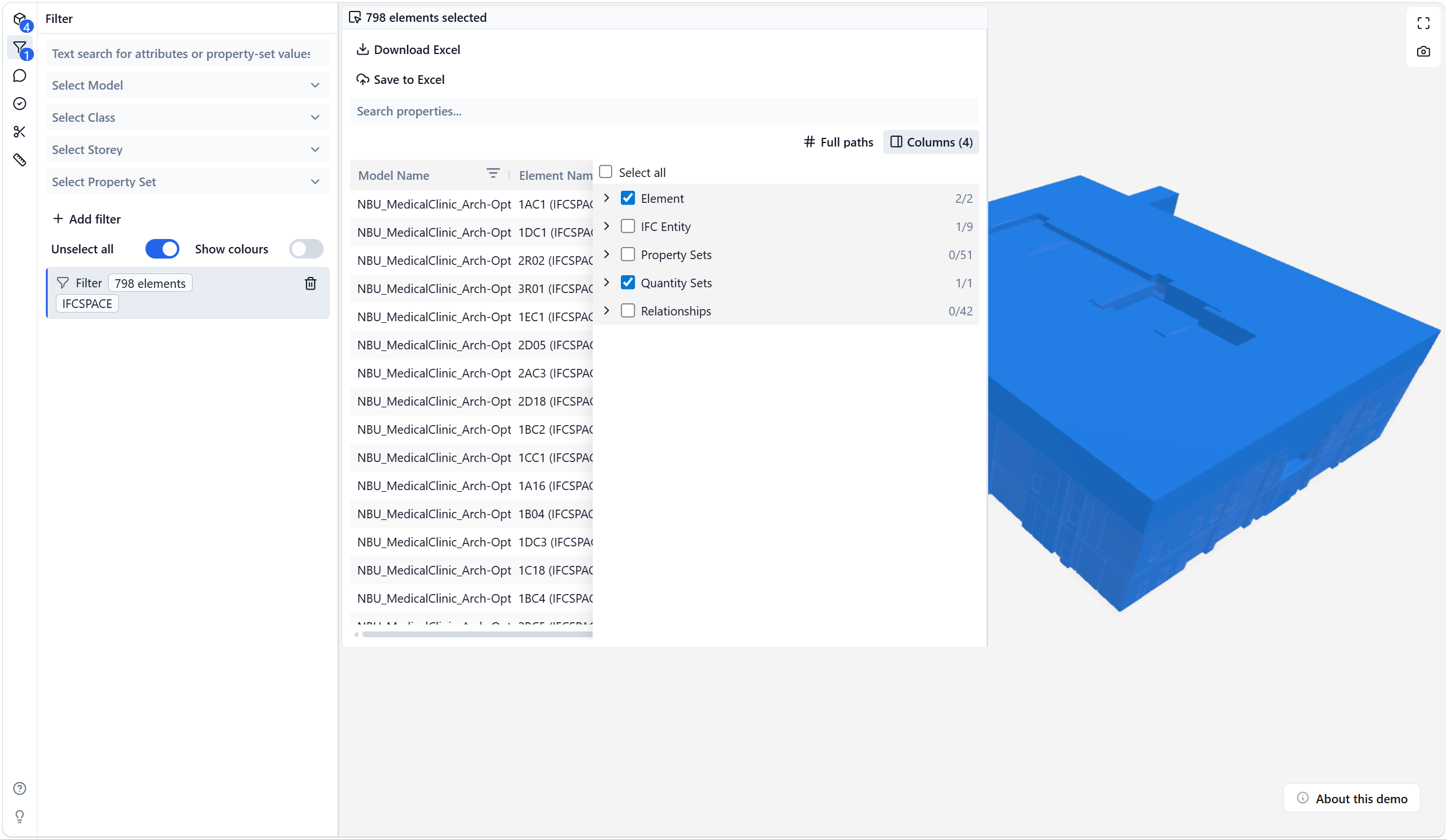
Save to Excel in the Excel add-in
Use Save to Excel in the IFC Viewer Add-in for Excel when you want the exported properties inside the workbook where you are already reviewing the model.
Use this workflow when you want to:
- Continue analysis with Excel tables, formulas, PivotTables, charts, or Power Query.
- Keep the model view and spreadsheet analysis in the same workbook.
- Build reports from selected IFC elements without manually copying property values.
The exported rows are based on the current viewer selection. If you opened the properties table and changed the visible columns, those visible columns define the export.
For model loading and selection sync in Excel, see Use the IFC Viewer in Excel.
Save to Excel in Microsoft Teams
Use Save to Excel in the IFC Viewer for Microsoft Teams when you want to create an Excel output from a shared project model inside a Teams workflow.
Use this workflow when you want to:
- Review a model in a channel and save selected property data for the team.
- Keep exported workbooks in the Microsoft 365 project context.
- Share selected model data with team members who continue the analysis in Excel.
The exported content follows the same selection and visible-column behavior as the properties table.
For setup and model loading in Teams, see Review IFC models in Microsoft Teams.
Keep exports focused
Full IFC property exports can become large. For easier Excel tables:
- Select only the model elements you need.
- Open View Properties Table before exporting.
- Use Columns to include only relevant property sets and properties.
- Use Full paths when property names repeat across different property sets.
Data location and security
IFC processing happens in the viewer. In Microsoft 365 app workflows, IFC files and Excel outputs remain in your tenant context.
For more details, see Microsoft App Compliance.