Deploy library templates across SharePoint projects
Set up a library once and reuse its configuration across project workspaces. Autodeploy in ISO 19650 copies columns and metadata rules, or folders and permissions, from an existing SharePoint document library to selected libraries on the same site or other sites in your organization.
Use it to prepare a new project, repeat an agreed folder structure, or give several work areas the same document rules. Add destination libraries one by one and apply the setup in one run.
Reuse the setup that your project needs
Choose the copy action in the dialog that manages that part of the library.
| Open | What you can deploy |
|---|---|
| Manage columns | Supported custom columns, saved metadata and naming rules, native SharePoint validation, and modern approvals when the source uses them. |
| Manage permissions | Folder structure, library and folder permission assignments, permission inheritance, and missing custom SharePoint groups and permission levels. |
Both dialogs offer Copy to and Import from. Start in a configured library to send its setup to several destinations, or start in a destination library to bring in a template. Site and library pickers load automatically and show names with their URLs to help you choose the correct location.
Each copy applies the source setup at that time. Later changes to the template are not synchronized automatically. Documents and individual file permissions are not copied.
Before you start
- Install ISO 19650 and activate the subscription required for copy actions.
- Prepare a source library with the columns and saved policy, or folders and permissions, that you want to reuse.
- Create the destination document libraries in SharePoint.
- Use an account with permission to read the source configuration and manage the destination libraries.
The destination requirements depend on what you copy.
| Copy action | Destination requirements |
|---|---|
| Columns and metadata rules | No saved metadata policy, custom columns, or list validation. You need Manage Lists permission. |
| Folders and permissions | A newly created, unused document library with no files or folders and inherited site permissions. You need Manage Permissions on the source and destination, and Manage Lists on the destination. |
Deleting the contents of a previously used library does not make it eligible for a permissions copy. A new library can already have columns or a metadata policy when you copy its folders and permissions.
For permission copies, use a site collection administrator account, or an account in the destination site's Owners group that retains Full Control at every copied location with unique permissions. Creating custom groups or permission levels also requires permission to manage permissions on the destination site.
Copy columns and metadata rules
Use Manage columns to give several libraries the same document identification and metadata requirements.
- Open the source document library and select Manage columns on the command bar.
- Confirm that the library has a saved, valid policy, then select Copy to.
- Review the Columns and Policies summary.
- Choose the Destination site and select a library under Destination libraries.
- Add further libraries one by one. Change the destination site to include libraries from another project.
- Review the selected libraries and select Copy to 2 libraries, or the corresponding button for your selection.
- Wait for the results, then select Close.
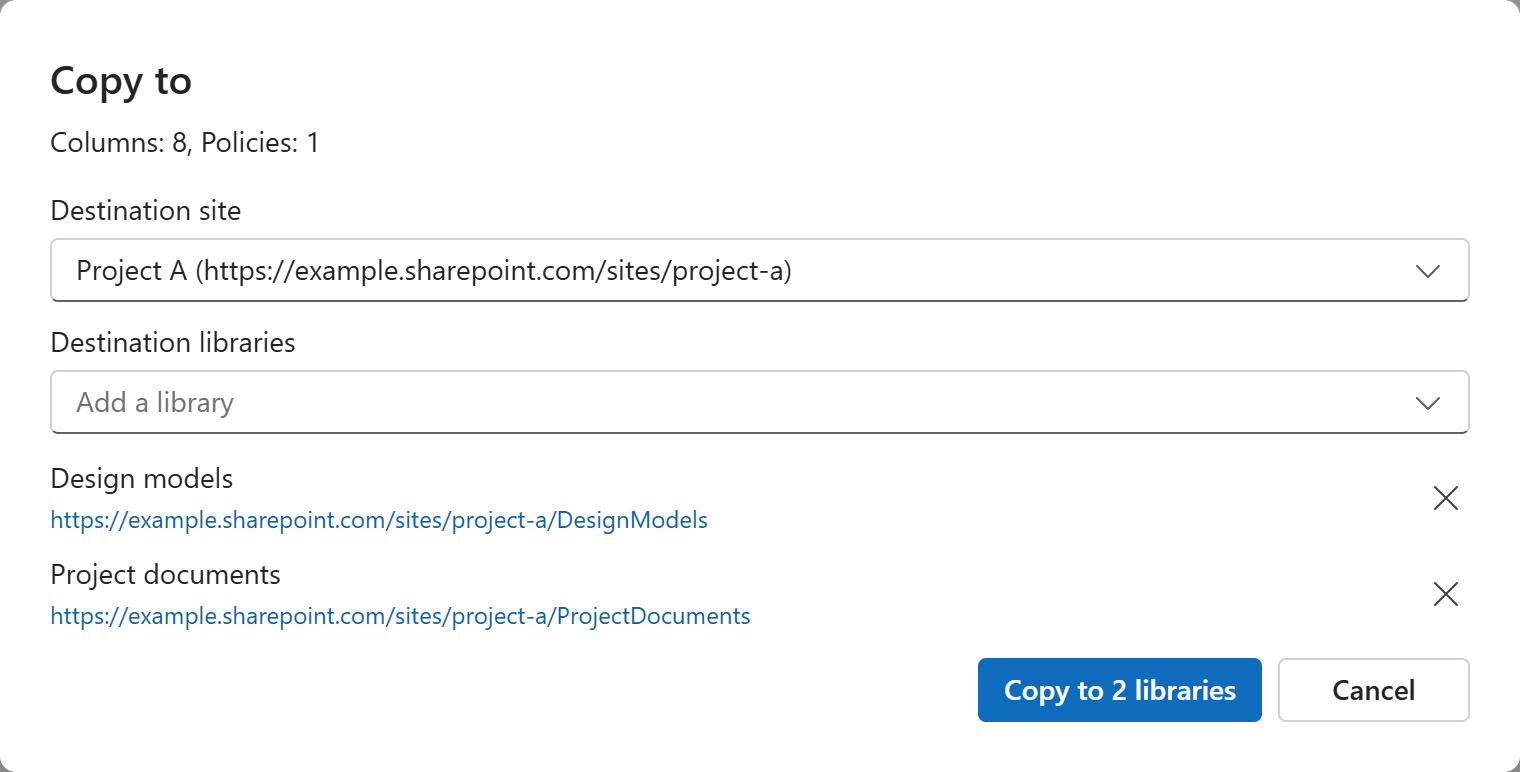
The summary describes the source columns and policy that will be applied to each selected library. Copy to uses the saved policy. Save any changes to the source policy before starting the copy.
Supported columns keep their internal names, display names, types, choices, default values, required settings, and column validation. Copied columns appear in the destination's default view. The app creates the native SharePoint validation needed to enforce the copied policy.
When the source uses modern SharePoint approvals, the copy also enables approvals on the destination and adds Approval status to its default view. Configure the destination's approvers separately. Approval requests, history, and default approver rules are not copied.
Unsupported column types, such as lookup or calculated columns, prevent the copy. Resolve the reported issue in the template before trying again.
For details on preparing the source policy, see Manage ISO 19650 document names and metadata.
Copy folders and permissions
Use Manage permissions to create the same working structure and access assignments in new project libraries.
- Open Manage permissions at the root of the configured source library.
- Select Copy to.
- Choose the Destination site and add destination libraries one by one.
- Review the counts for folders, permissions, new groups, and new permission levels. Sharing links that will be skipped are shown separately.
- Select Copy to 2 libraries, or the corresponding button for your selection.
- Wait for each destination's result, then select Close.
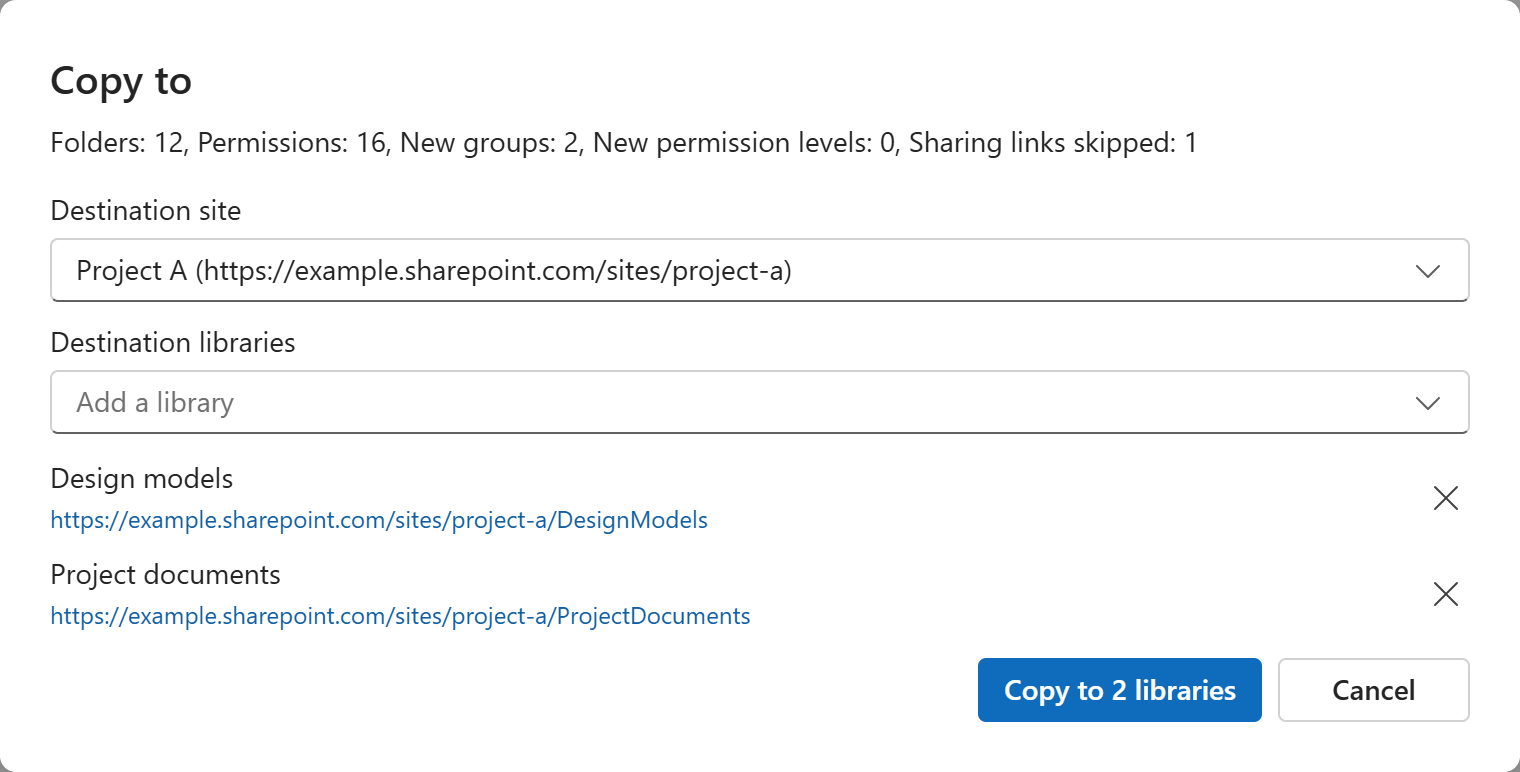
After destinations are selected, the summary shows the planned folder and permission assignments across those libraries. New groups and permission levels are counted once per destination site where they need to be created.
The copy creates folders and applies the source library and folder permissions. Folders that inherit permissions continue to inherit. If the source library inherits from its site, the destination inherits from its own site. Sharing-link permissions are skipped. Templates containing document sets are not supported.
Keep each site's own groups
The destination site's standard groups remain the basis for project access.
| Source permission uses | What happens at the destination |
|---|---|
| Owners, Members, or Visitors | Use the destination site's corresponding group, even when its name is different. |
| Custom SharePoint group | Reuse a group with the same name, or create it empty when it is missing. Source members are not copied. |
| Direct user or directory group | Resolve the same account or group at the destination. |
| Custom permission level | Reuse a matching permission level, or create it when it is missing. Conflicting permissions stop the copy. |
Add the appropriate project members to newly created custom groups after copying. Existing group membership is unchanged. This lets you reuse an access structure while assigning different people to each project.
Import a template into the current library
Use Import from when you are already working in the destination library.
- Open Manage columns or Manage permissions and select Import from.
- Choose the Source site and Source library.
- Review the loaded summary.
- For columns, select Review policy, check or adjust the rules in Manage columns, and select Save.
- For permissions, select Copy to create the folders and apply the access structure.
Selecting a source library loads its setup without applying it. Both copy buttons stay visible when unavailable. Hover over a disabled button to see why the action is unavailable.
Prepare a complete project library
For a new project, combine the two actions before adding documents. Copy columns and metadata rules first, then copy folders and permissions into the same new libraries. The permissions copy preserves the columns and saved policy already prepared there.
For example, maintain a template with agreed project codes, disciplines, revision formats, and folders for design, review, sharing, and publication. Reuse it for the next project's model and document libraries. Each destination receives the same structure and rules, while its site's Owners, Members, and Visitors continue to control local access.
Use separate templates where different work areas need different rules or access. Review the destination groups and configure its approval reviewers before the project team starts uploading files.
Check results and resolve failures
Each destination shows its own result. If some copies fail, resolve the reported issue and retry the failed destinations in the same dialog. Libraries that were copied successfully are skipped on retry.
If a copy fails after making changes, the app attempts to undo the changes from that attempt. Review any reported cleanup failure before trying again. Keep the dialog open until copying and any cleanup have finished.
Open the destination libraries after copying. Check their columns, saved policy, folders, and access as applicable, then add members to new groups and configure approval reviewers.